pixeltrain Blender Academy 2024

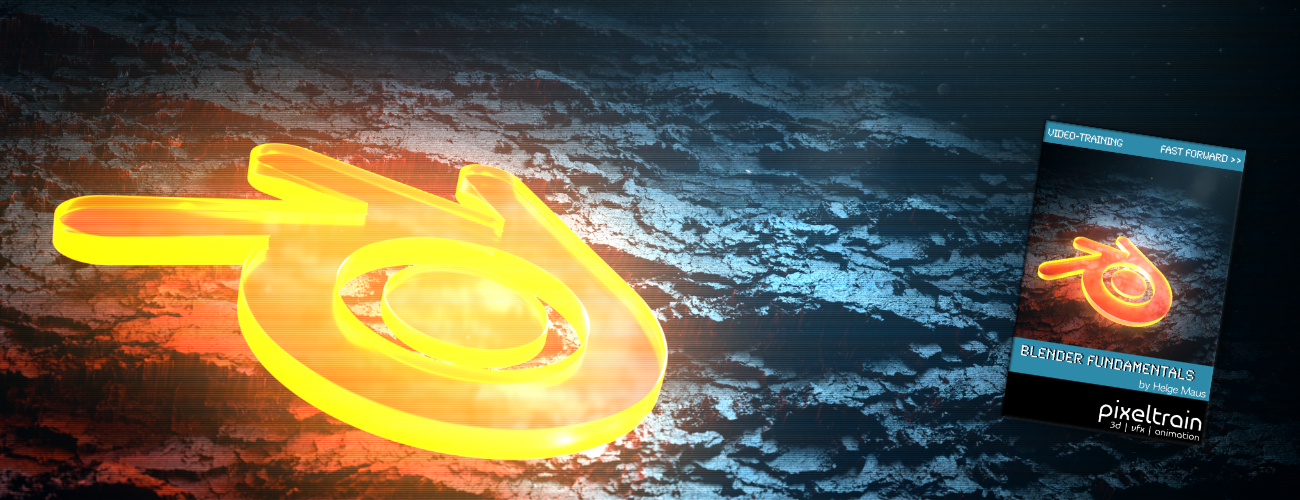
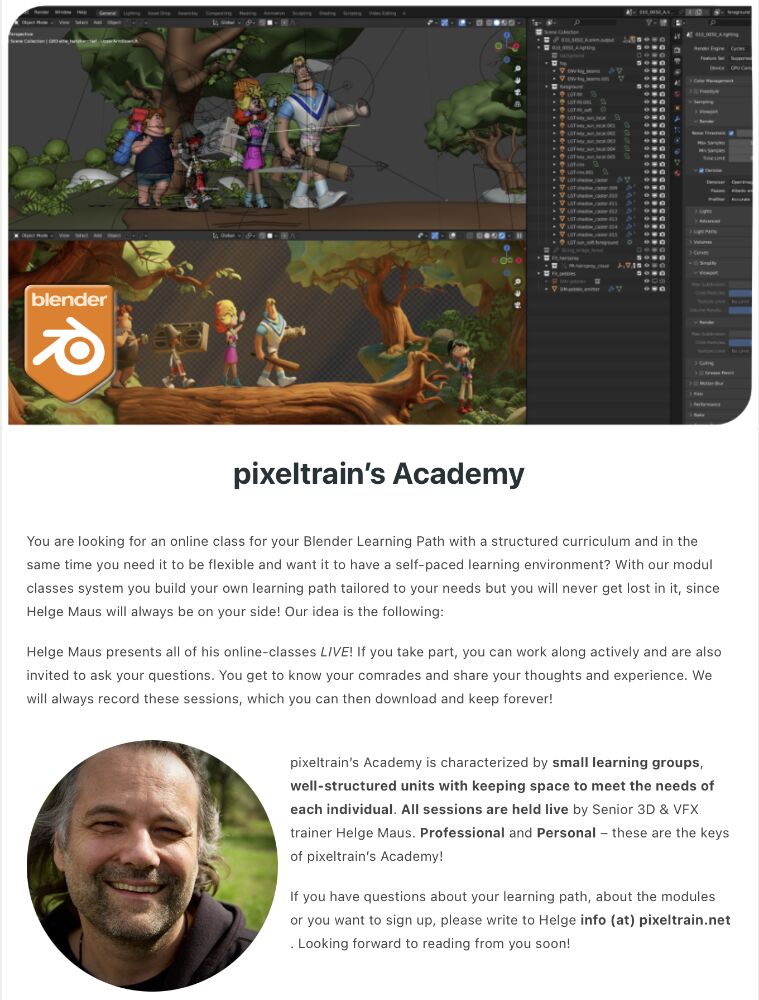
🔥 pixeltrain Blender Academy 2024 🔥 dates are fixed now!

Would you like to learn Blender in a well-founded and practice-oriented way?
Without watching hundreds of redundant and shallow tutorials?

Learn online, with live teaching sessions, in small groups and with personal mentoring from Senior 3D & VFX trainer Helge Maus.

Through our modular system, you can build your own curriculum to suit your previous knowledge, pace and goals.

The next Blender Fundamentals module starts on January 19th 2024, the Blender Shading & Rendering module on January 26th and Blender Animationsystem on January 31th.

You can find more information here:

👉 http://www.pixeltrain.net/pixeltrains-academy/

For questions and registrations, I am available directly at info@pixeltrain.net .

Have fun!

#b3d #blender #blender3d #blenderforproduction #3d #vfx #animation #training #schulung #course #helgemaus #pixeltrain #pixeltrainacademy
Blender Fundamentals Publication by Helge Maus / pixeltrain

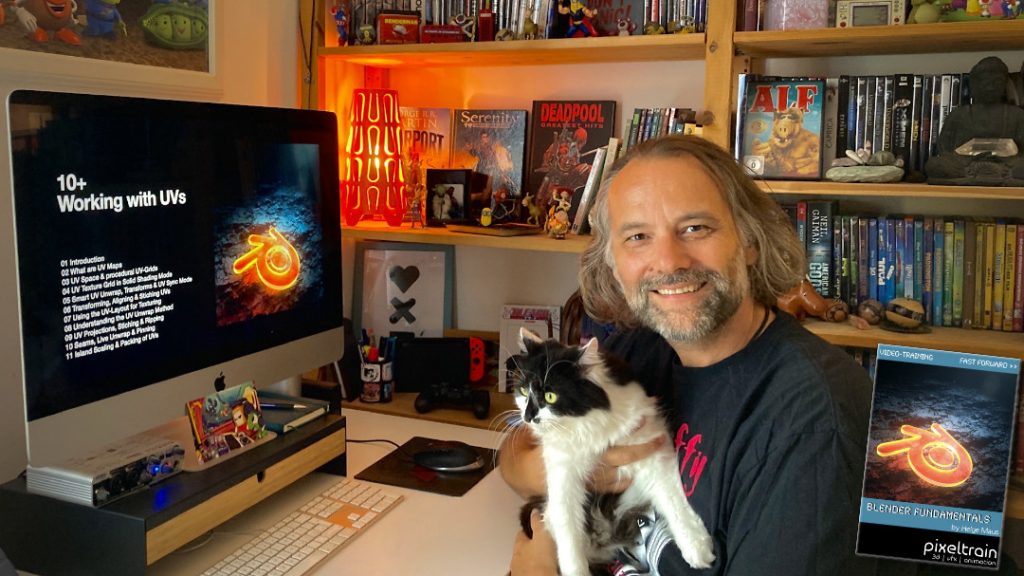
Today, I have added another Plus+ chapter “Working with UVs” to my Blender Fundamentals Publication.

This additional content is free for everyone who has bought the publication in the past. Also I’m working on more Plus+ content for the future.

The publication „pixeltrain – Blender Fundamentals >> Fast Forward“ by Senior 3D & VFX trainer Helge Maus is a complete Introduction to Blender 3D. 

Meanwhile the publication is around 25 hours long with 137 lessons.

👉 Blender Market

https://blendermarket.com/products/pixeltrain-blender-fundamentals-fast-forward

👉 VIMEO Video-on-Demand 

https://vimeo.com/ondemand/blenderfundamentals

👉 GUMROAD

https://pixeltrain3d.gumroad.com/l/BlenderFundamentals

The focus of this publication is NOT building a fancy eye-catchy example scene. But it is concepted as a step-by-step logical structured learning curriculum, with deep explanations of concepts, workflows and tool options. It lays the foundation of essential concepts and paradigms to understand more advanced topics for other areas and workflows of Blender 3d down the road.

Chapterlist, so far:

01 First Steps in the Blender User Interface (2h 33m)

02 Working with Primitives & Transformations (2h 58m)

03 Working Modes & Selections (1h 6m)

04 Polygon Modeling (4h 30m)

05 Subdivision Surface (1h 8m)

06 Plus+ Sculpting (2h 34m) 

07 Curves & Text (1h 19m)

08 Modifiers (1h 16m)

09 Materials, Shader & Textures (2h 45m)

10 Plus+ Working with UVs (1h 56m)

11 Lighting, Cameras & Rendering (2h 32m) 

*Additional PLUS+ content coming soon! This PLUS+ content is free for every owner of the publication. 

Topics covered:

  • Blender’s UI, Setup and Preferences
  • The powerful Add-on system and the most used built-in add-ons
  • Working with Primitives
  • Transformations 
  • Scene-Management
  • Effective Selections 
  • The powerful Polygon-modeling Toolset of Blender
  • Subdivision Surface Modeling
  • Working with Curves & Text
  • Procedural Workflows with Modifiers
  • Introduction to Sculpting
  • Shading, Materials and Texture Workflows
  • The Node-based Shader Editor and PBR Setups
  • Working with UVs
  • Lighting your Scenes with Lights, Sky Models and HDRIs
  • Physical Cameras
  • Camera Effects like Depth of Field
  • Making final Renderings
  • Advanced Cycles Render Settings
  • Sampling, LightPaths, Denoising & Ray Visibilities
  • World Atmospheres and Volume

As always I will put these new lessons into my Patreon Account over the course of the coming weeks as a “Thank you” for the support of my Patreons:

https://www.patreon.com/pixeltrain3d

If you have any questions about this publication or about Blender remote training, please let me know!

Helge

Blender Grundlagen Training mit Helge Maus

Du möchtest Blender 3D fundiert und effizient lernen und in den Bereich 3D-Visualisierung einsteigen? 
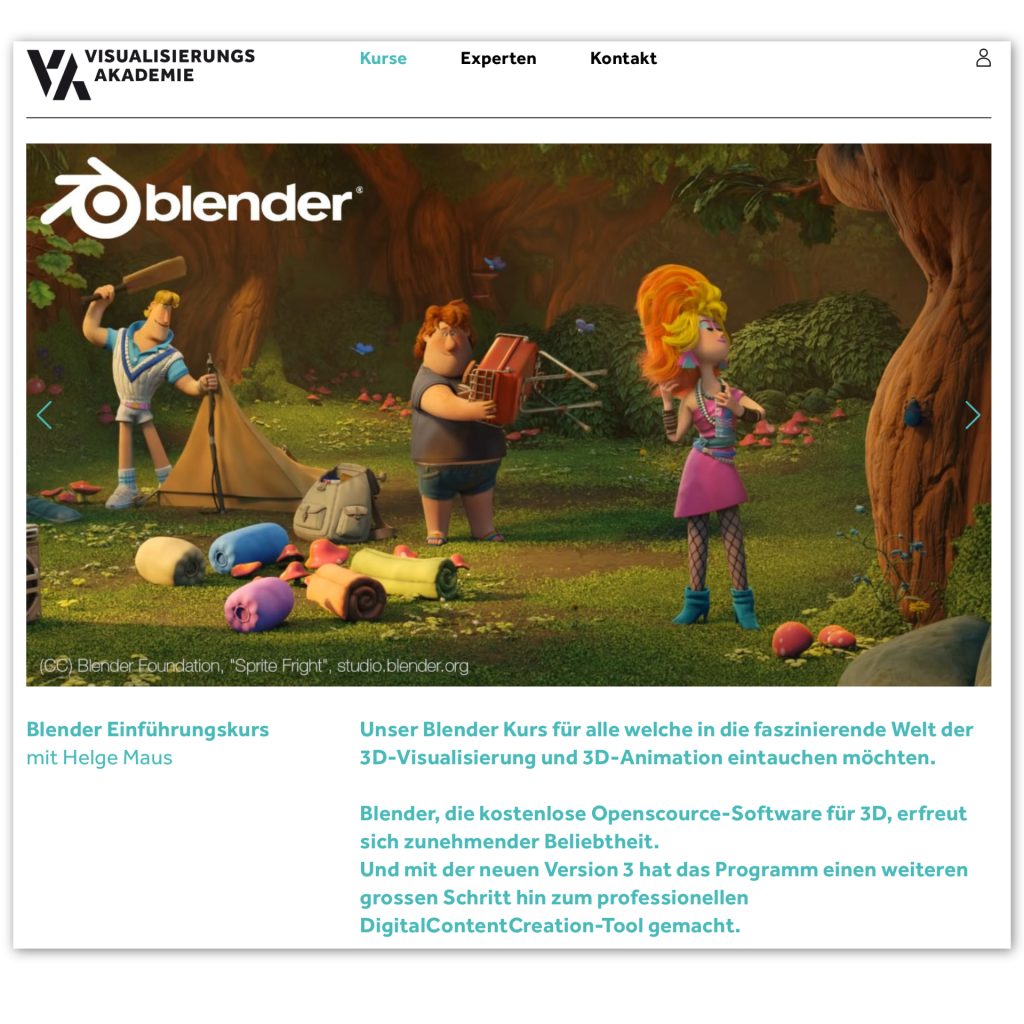
Mein nächster deutschsprachiger „Blender 3.6 – Grundlagen“ Kurs findet am 06.+07. Juli in Zusammenarbeit mit der Visualisierungs-Akademie statt. Als live online Training.

Dieser Kurs ist für Beginner konzeptioniert, genauso wie für Artists die bereits aus anderen 3D Programmen Vorwissen haben und nun Blender intensiv kennenlernen wollen. Da der Kurs online durchgeführt wird, arbeitest Du zwei Tage live mit mir in einer kleinen Lern-Gruppe, egal wo du wohnst.

Hier ist der Link zur Anmeldung. 

https://visualisierungs-akademie.ch/de/kurse

Bei Fragen stehe ich gerne zur Verfügung.

Helge Maus

English

If you are looking for a Blender Fundamentals or Blender Advanced Training, please contact me per direct message.

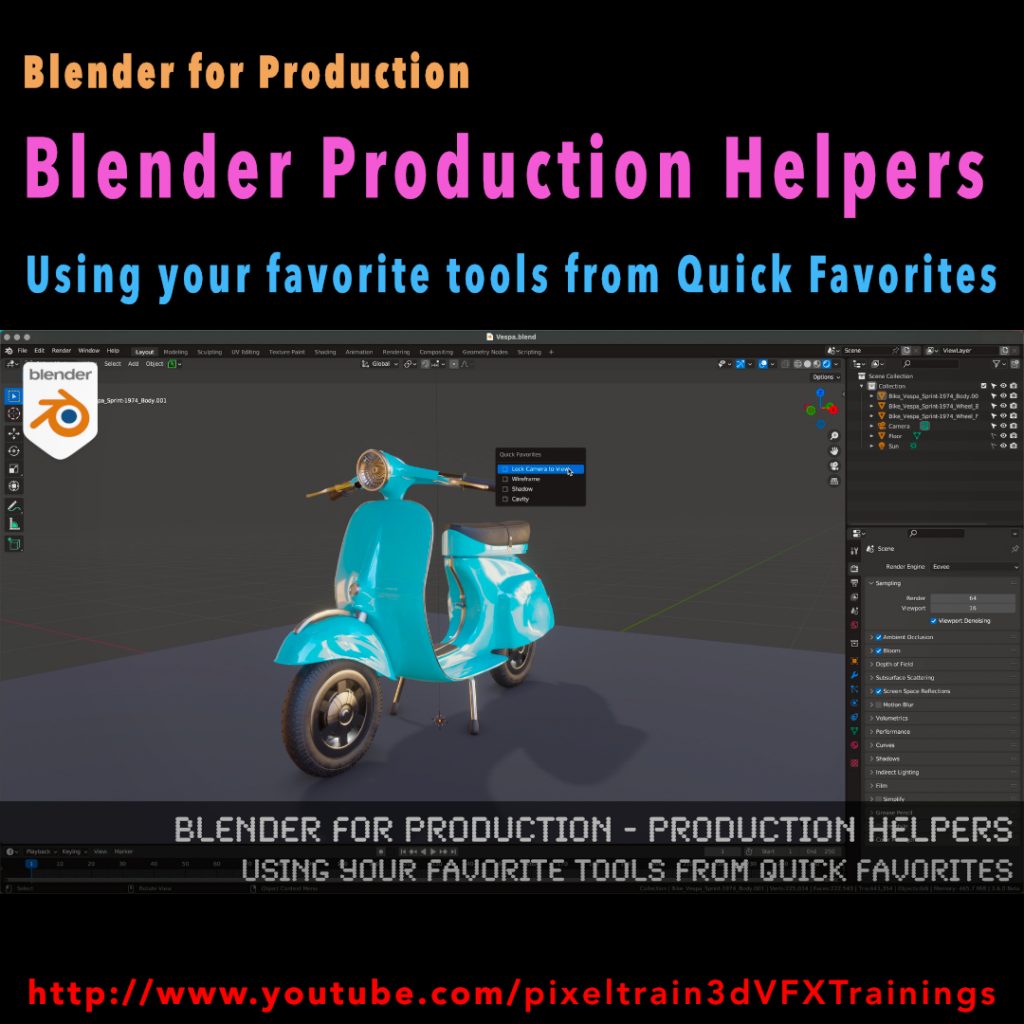
Blender for Production - Production Helpers - Using Your Favorite Tools from Quick Favorites Tutorial by Helge Maus / pixeltrain

Published another free “Blender for Production” tutorial:

“Production Helpers – Using Your Favorite Tools from Quick Favorites”

👉 https://youtu.be/rdqAm_px-oI

In this tutorial we will talk about setting up a Quick Favorites menu for the different working modes inside of Blender. Often used functions and options can be added there by the artist to work faster and more efficient. While explaining the process we will look into several clever helpers like switching edit meshes with keyboard shortcuts, fading inactive objects, configure often used overlays and much more.

Have fun!

Helge

You want to dive deeper into Blender and it’s workflows?
Together with Visualisierungs-Akademie Schweiz GmbH, I offer all the trainings modules you need to start with Blender and deepen your knowledge depending on your needs.

These courses are online in small groups, in German language at the moment.
Every course can be booked separately depending on your time, budget and needs.

You find all the dates on:
https://visualisierungs-akademie.ch

Blender Introduction, 2 days
April 27 + 28, 2023

Blender Shading & Rendering, 2 days
May 11 + 12, 2023

Blender Animation & Rigging, 2 days
April 20 + 21, 2023

or

June 15 + 16

If you are interested in the same courses in English or you are looking for a company training / individual coaching, please let me know as DM.

Helge

This tutorial is a demo lesson from my Publication „pixeltrain Blender Fundamentals >> Fast Forward“.

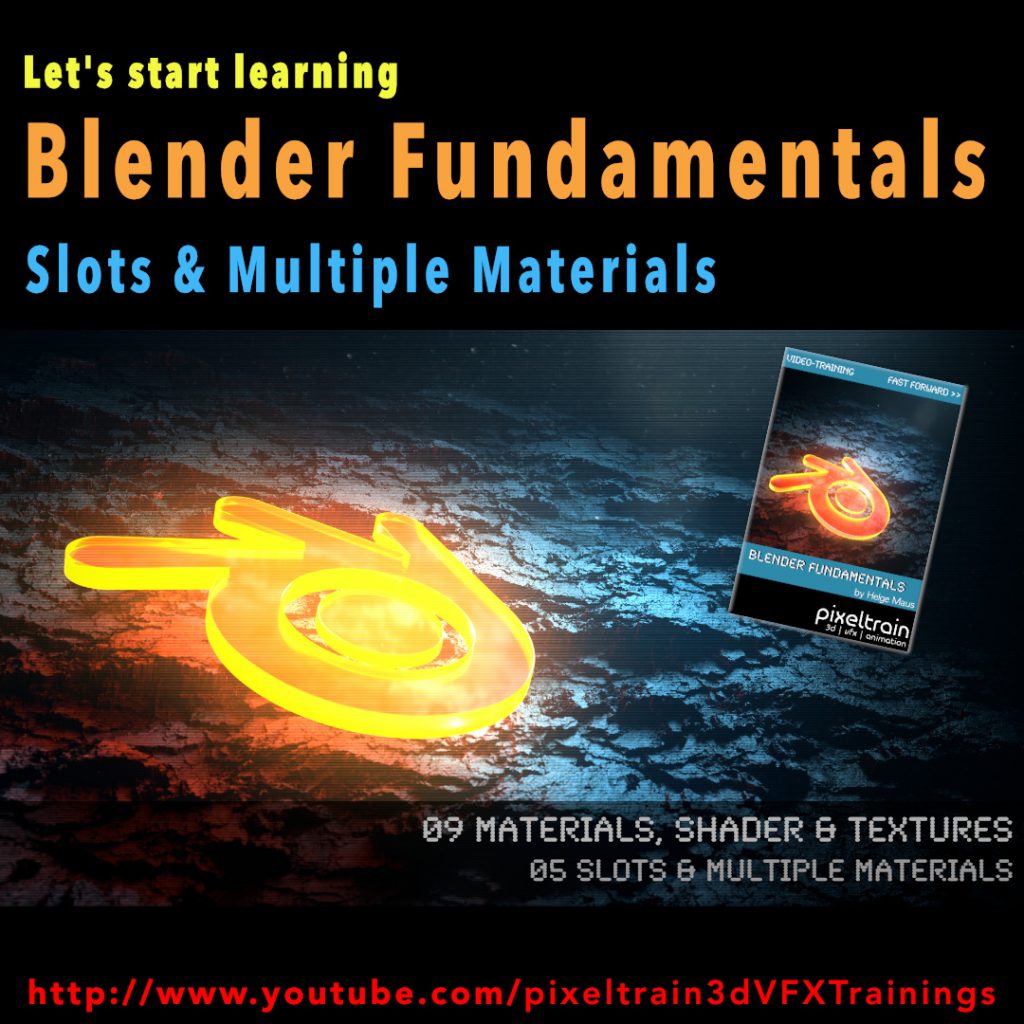
Blender Fundamentals – Multiple Materials on one object & Slots (Demo lesson)

In this tutorial, you will learn how to assign Materials through the slot system of Blender to mesh parts. You will understand what a. slot is, how to make effective selections and assignment and how to assign multiple Materials to one mesh.

Here are the links for my Blender Fundamentals publication. In over 120 lessons with a duration of 20+ hours, I will take you through the complete fundamentals of Blender and the basic workflows you need to know to get started with this amazing free software.

👉 YouTube Trailer

👉 Blender Market
https://blendermarket.com/products/pixeltrain-blender-fundamentals-fast-forward

👉 VIMEO Video-on-Demand 
https://vimeo.com/ondemand/blenderfundamentals

👉 GUMROAD
https://pixeltrain3d.gumroad.com/l/BlenderFundamentals

00:00 Overview of the series and the lesson

01:06 Slots & Multiple Materials

01:26 Working with the local Mode

02:00 Basic Material assignment

02:15 Adding an additional Material slot

02:30 Understanding Slots in the Properties & Shader Editor

03:28 Assigning Faces to a slot

04:43 Selecting faces from an assignment

06:07 Selection faces more effectively

07:06 Re-assign a Material

07:34 Going out of Local mode

08:00 Assigning Slots without Materials

08:33 Changing the Material of a slot

If you have questions or topics, which should be added, please let me know.

If you want to support me for publishing more free tutorials you could

join my Patreons: 👉 https://www.patreon.com/pixeltrain3d

or give me a fast Coffee time Tip: 👉 PayPal: https://paypal.me/pixeltrain

Blender Fundamentals - Loop Cut & Offset Loop Cut Tool (Demo lesson)

This tutorial is a demo lesson from my Publication „pixeltrain Blender Fundamentals >> Fast Forward“.

[Tutorial] Blender Fundamentals – Loop Cut & Offset Loop Cut Tool (Demo lesson)

In over 120 lessons with a duration of 20+ hours, I will take you through the complete fundamentals of Blender and the basic workflows you need to know to get started with this amazing free software.

In this tutorial, you will learn the use of the LoopCut tool and the Offset Edge Loop Cut tool. First you will see how to work with these tools from the Quick tools menu and all the options, then we will look into the keyboard shortcuts and options keys for faster access. At the end, Helge shows how to double edges with the Bevel shortcut as an alternative.

Here are the links for my Blender Fundamentals publication:

👉 YouTube Trailer

👉 Blender Market
https://blendermarket.com/products/pixeltrain-blender-fundamentals-fast-forward

👉 VIMEO Video-on-Demand 
https://vimeo.com/ondemand/blenderfundamentals

👉 GUMROAD
https://pixeltrain3d.gumroad.com/l/BlenderFundamentals

00:00 Overview of the series and the lesson

01:06 LoopCut tool & Offset Loopcut tool

01:30 Using Loop Cut from the Quick tools

01:50 Making a loop cut

02:30 Options of the loop cut

04:00 Sliding the cut

04:45 Working with referenced edges

05:20 Options Even and Flip

06:20 Adding loop cuts with shortcuts

07:30 Options Even and Flip with shortcuts

08:30 Offset Edge Loop Cut tool

10:09 Working with the shortcut

10:37 Working with edge bevel as an alternative

If you have questions or topics, which should be added, please let me know.

If you want to support me for publishing more free tutorials you could join my Patreons:

👉 https://www.patreon.com/pixeltrain3d

or give me a fast Coffee time Tip:
👉 PayPal: https://paypal.me/pixeltrain

Blender Hair Curves - Project Heist

The next version of Blender, version Blender 3.3 LTS, is coming at the beginning of September 2022. At the moment I am testing the Alpha version to follow the developent of the new features of this version. As a LTS version, it will then receive bugfixes for 2 years, so it is a big milestone for development and production.

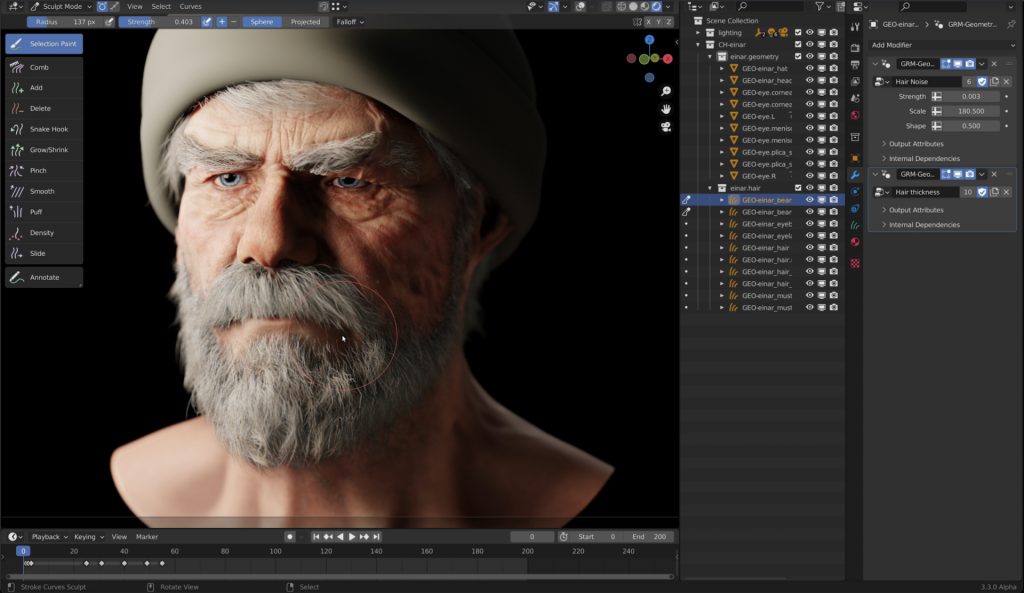
One of the most exciting features will be the new Hair system, which will be based on curves. The existing Hair system of Blender uses the Particle system, which is great, but also a little bit “old-school”.

Through geometry nodes it is possible to build your own geometry generators and procedural modifiers. Now with this new curve based approach for Hair you can build very easily procedural modifiers for Hair, for example you build only a basic Hair groom and then the Hair is filled procedurally and also reacts to weather conditions and wetness and so on by a modifier. This is awesome!

Andy Goralczyk from Blender Studio presents a new hair system for the upcoming Blender 3.3. The new hair system uses new high performance curves objects and combine the flexibility of Geometry Nodes with powerful destructive tools for hair grooming.

You find more information here in this article:
https://code.blender.org/2022/07/the-future-of-hair-grooming/

If you have any questions, please let me know. For Blender Trainings (remote, for companies and individuals please check www.pixeltrain.net or contact me directly under info(at)pixeltrain.net ).

Have a nice weekend,

Helge

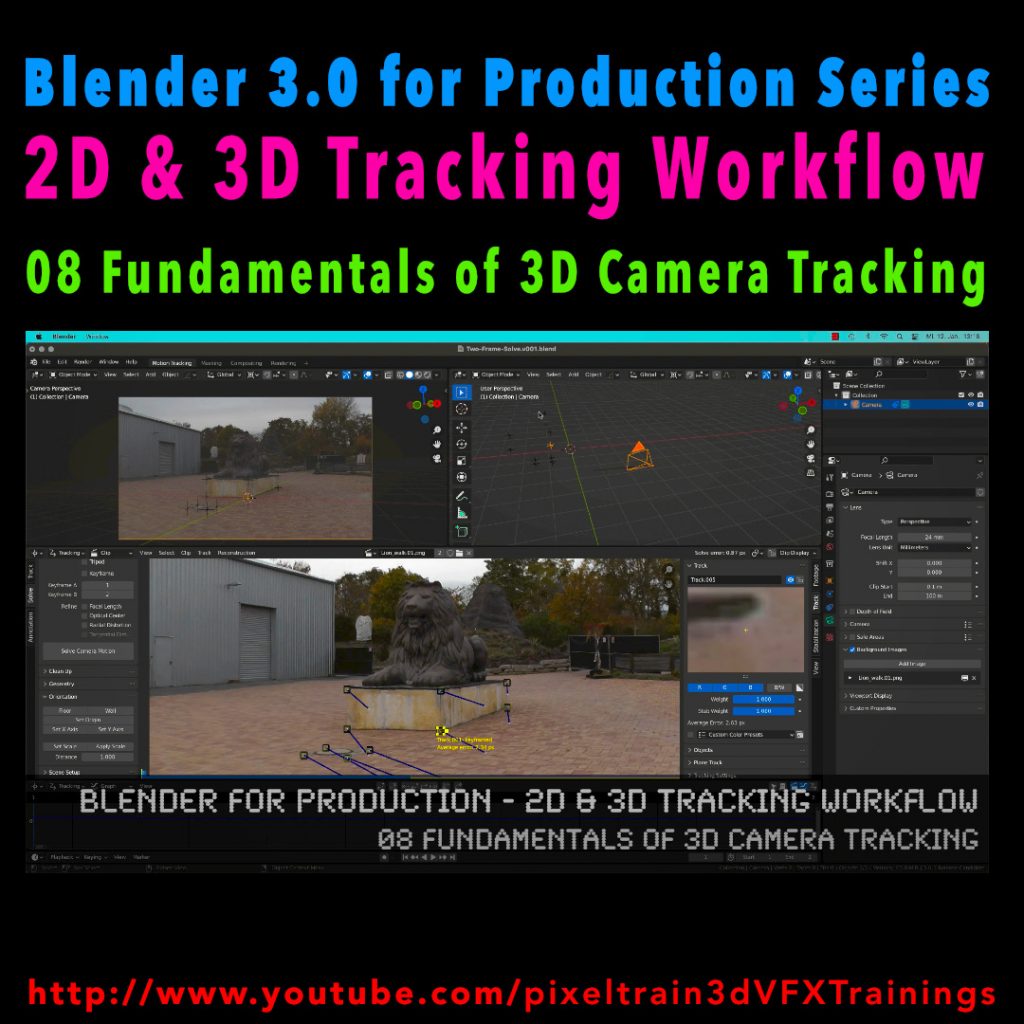
Blender 3.0 for Production - 2D & 3D Tracking Workflow - 08 Fundamentals of 3D Camera Tracking

In this tutorial series, we will talk about Blender as a solution for 3D Camera and Object Tracking. Step by Step you will learn how to use Blender for preparing your footage in the Video Sequence Editor (VSE) and getting used to the Movie Clip Editor. Then we will cover the important fundamentals of 2D-Tracking in Blender and also some use-cases for directly using these data. Then we build upon these 2D-Tracks and start solving a 3D-Camera and talk about good and bad tracks, nodal shots, tricks like offset-tracking, joining of tracks, and analyzing solve problems. In the final tutorials, we will finish with Object-tracking for props replacement. After this tutorial series, you have a solid understanding of Blender’s Camera and Object Tracking and how to use the solved data inside of Blender or in other applications like Maya, Cinema, or Houdini.

Blender 3.0 for Production – 2D & 3D Tracking Workflow – 08 Fundamentals of 3D Camera Tracking

These topics are covered in this tutorial:

Loading 2 Frames as Image Sequence

Purpose of Camera Tracking

Needs for 3D-Object integration

Understanding Parallax & Photogrammetry

Solving process & Keyframes

Stereo Photogrammetry

Rules for valid trackers

Good trackers, bad trackers

Tracking two images

Setting the best Keyframes

Solve Camera Motion

Understanding the Solve Error

2D Trackers vs. 3D Markers

Average Error and Reprojection Error

Camera Constraints

Camera Solver Constraint

Add the Plate into the Camera Background

Display overlays for Motion Tracking

Limitations of a Solver (Size and Orientation)

Manual Orientation of the scene

Understanding the Orientation functions

Floor and Origin

Setting axes

Set the scene scale from reference

Camera Settings

Backsize and Focal Length

Setting Camera Settings for the Solve

Searching the right Focal Length

Refine Mode for Focal Length

Finding the right settings

If you want to use the same footage, here is my Gumroad link:

https://pixeltrain3d.gumroad.com/l/GEdjT

Be aware, that these files are included in my Patreon 😉

https://www.patreon.com/pixeltrain3d

This tutorial series „Blender for Production“ focuses on Blender as a full Production Suite for (Indie) 3D- & VFX Productions. In these tutorials, I will explain how to work with the different Modules of Blender and how they are connected. I will give you an introduction to the specific functionalities, but also the production context and workflows, which can help you to use Blender in your productions. 

As a Senior 3D & VFX Trainer, Helge Maus teaches 3D- & VFX Applications for 20 years. His focus lies on VFX, but he also works with many studios and agencies from different visualization areas. He focuses on Houdini FX, Blender, and NUKE for his daily work and training.

If you have questions or topics, which should be added, please let me know.

If you want to support Helge Maus for publishing more free tutorials you could join his Patreons:

https://www.patreon.com/pixeltrain3d

Find more information on www.pixeltrain.net

YouTube: https://www.youtube.com/pixeltrain3DVFXTrainings
Twitter: https://twitter.com/pixeltrain
Blog: http://www.helgemaus.com
Instagram: https://www.instagram.com/pixeltrain3d/
LinkedIn: https://www.linkedin.com/in/pixeltrain/
Artstation: https://www.artstation.com/pixeltrain

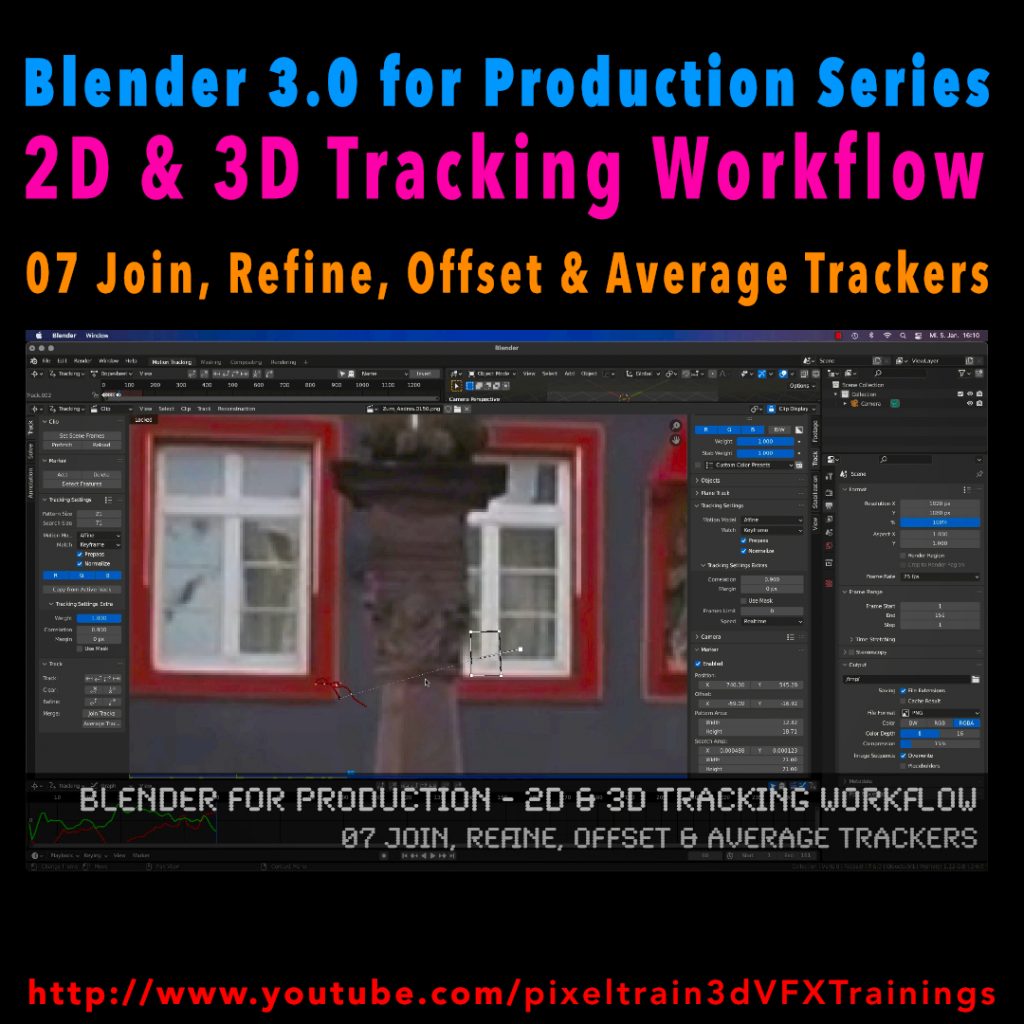
Blender 3.0 for Production - 2D & 3D Tracking Workflow - 07 Join, Refine, Offset & Average Trackers

In this tutorial series, we will talk about Blender as a solution for 3D Camera and Object Tracking. Step by Step you will learn how to use Blender for preparing your footage in the Video Sequence Editor (VSE) and getting used to the Movie Clip Editor. Then we will cover the important fundamentals of 2D-Tracking in Blender and also some use-cases for directly using these data. Then we build upon these 2D-Tracks and start solving a 3D-Camera and talk about good and bad tracks, nodal shots, tricks like offset-tracking, joining of tracks, and analyzing solve problems. In the final tutorials, we will finish with Object-tracking for props replacement. After this tutorial series, you have a solid understanding of Blender’s Camera and Object Tracking and how to use the solved data inside of Blender or in other applications like Maya, Cinema, or Houdini.

Blender 3.0 for Production – 2D & 3D Tracking Workflow – 07 Join, Refine, Offset & Average Trackers

These topics are covered in this tutorial:

Loading the Footage & Project Settings

Analyzing the footage

Tracker Settings

Configure the search area

Track step-by-step

Adjusting the pattern

Tracking Pie menu

Cleaning tracks

Disabling Trackers

Working with two trackers

Joining trackers

Manually enabling and disabling trackers

Refining Trackers

Offset Tracking

Adjusting Offsets while tracking

Resetting an Offset Track

Generating an Average Tracker

If you want to use the same footage, here is my Gumroad link:

https://pixeltrain3d.gumroad.com/l/GEdjT

Be aware, that these files are included in my Patreon 😉

https://www.patreon.com/pixeltrain3d

This tutorial series „Blender for Production“ focuses on Blender as a full Production Suite for (Indie) 3D- & VFX Productions. In these tutorials, I will explain how to work with the different Modules of Blender and how they are connected. I will give you an introduction to the specific functionalities, but also the production context and workflows, which can help you to use Blender in your productions. 

As a Senior 3D & VFX Trainer, Helge Maus teaches 3D- & VFX Applications for 20 years. His focus lies on VFX, but he also works with many studios and agencies from different visualization areas. He focuses on Houdini FX, Blender, and NUKE for his daily work and training.

If you have questions or topics, which should be added, please let me know.

If you want to support Helge Maus for publishing more free tutorials you could join his Patreons:

https://www.patreon.com/pixeltrain3d

Find more information on www.pixeltrain.net

YouTube: https://www.youtube.com/pixeltrain3DVFXTrainings
Twitter: https://twitter.com/pixeltrain
Blog: http://www.helgemaus.com
Instagram: https://www.instagram.com/pixeltrain3d/
LinkedIn: https://www.linkedin.com/in/pixeltrain/
Artstation: https://www.artstation.com/pixeltrain