
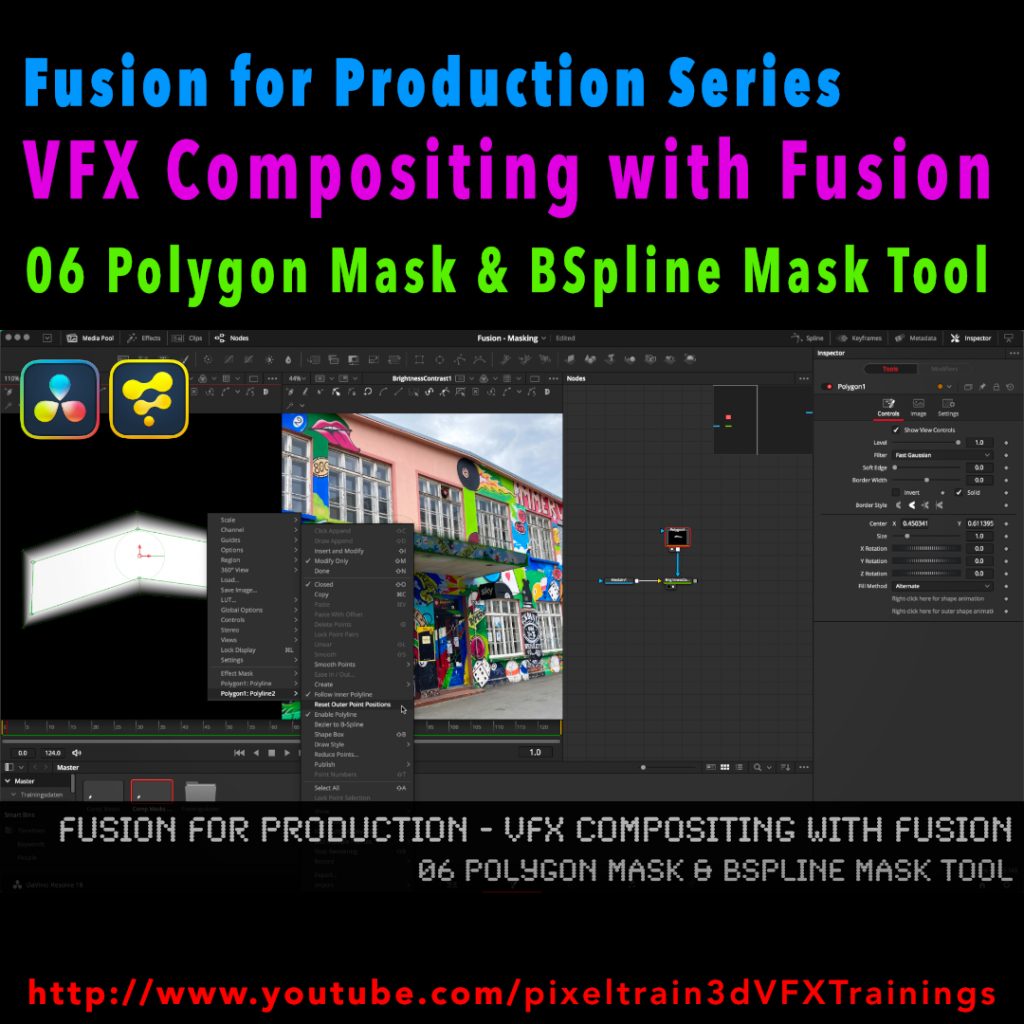
Fusion for Production - VFX Compositing with Fusion - 06 Polygon Masks & BSpline Mask Tool

I’ve just released my next free Blackmagicdesign Fusion Tutorial on my YouTube channel:

https://www.youtube.com/pixeltrain3DVFXTrainings

This time I talk about Masking, the Polygon Mask tool and the BSpline Mask tool. You can follow along with DaVinci Resolve on the Fusion Page or in Fusion Studio.

Have fun!

Helge
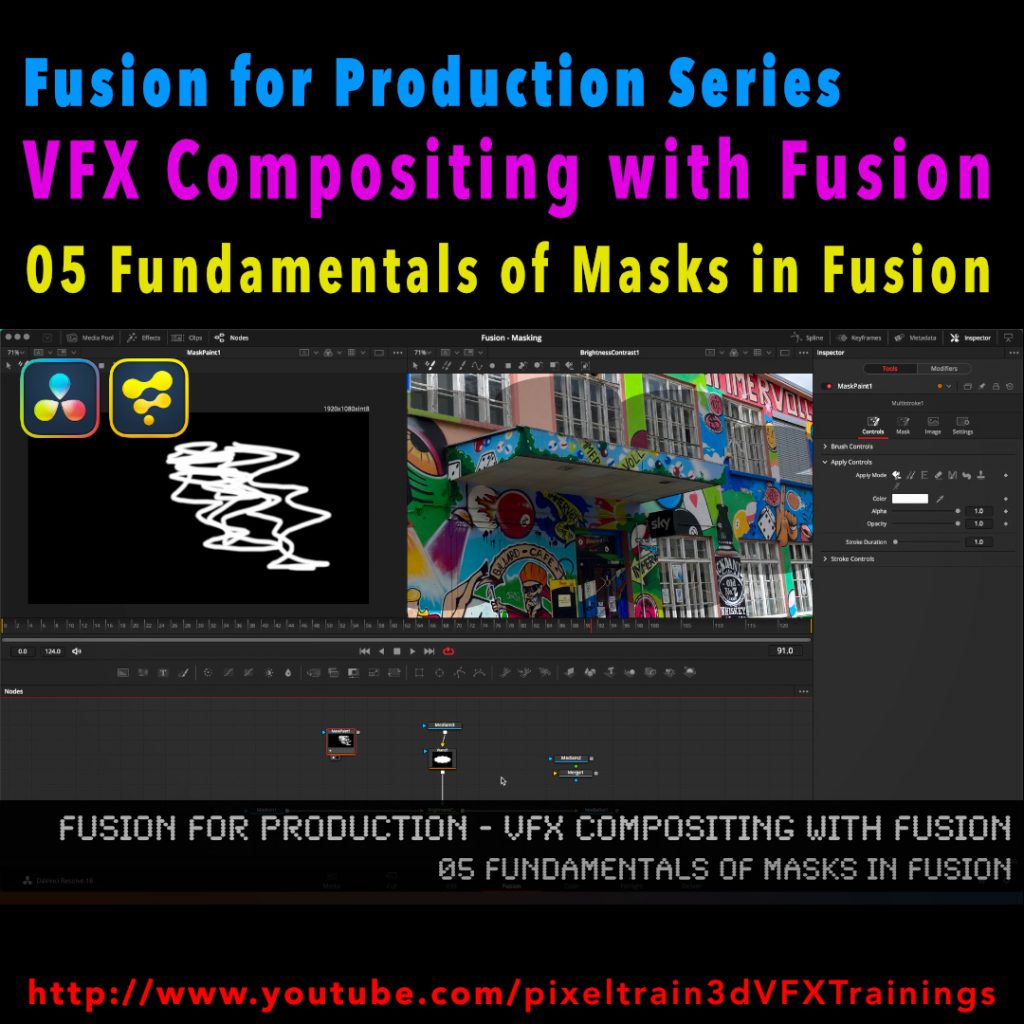
Fusion for Production - VFX Compositing with Fusion - 05 Fundamentals of Masks in Fusion

After a longer pause I’ve released a new free tutorial on my YouTube channel. I hope you like it 🙂

👉 https://youtu.be/RTIdh-ZsbTo

In this tutorial, you will learn the general uses and workflows of Masks in Fusion / Fusion Page in Resolve.

You will learn the different Mask types in Fusion, the most important parameters and options when drawing them. Also we will look into how to combine Masks for complex shapes for Rotoscoping. And, we will talk about bitmap based Masks in Fusion and how to use the Magic Mask, the Bitmap Mask and the Paint Mask.

I hope you like this new tutorial.

If you have questions or topics, which should be added, please let me know.

If you want to support me for publishing more free tutorials you could join my Patreons:

👉 https://www.patreon.com/pixeltrain3d

or give me a fast Coffee time Tip:
👉 PayPal: https://paypal.me/pixeltrain

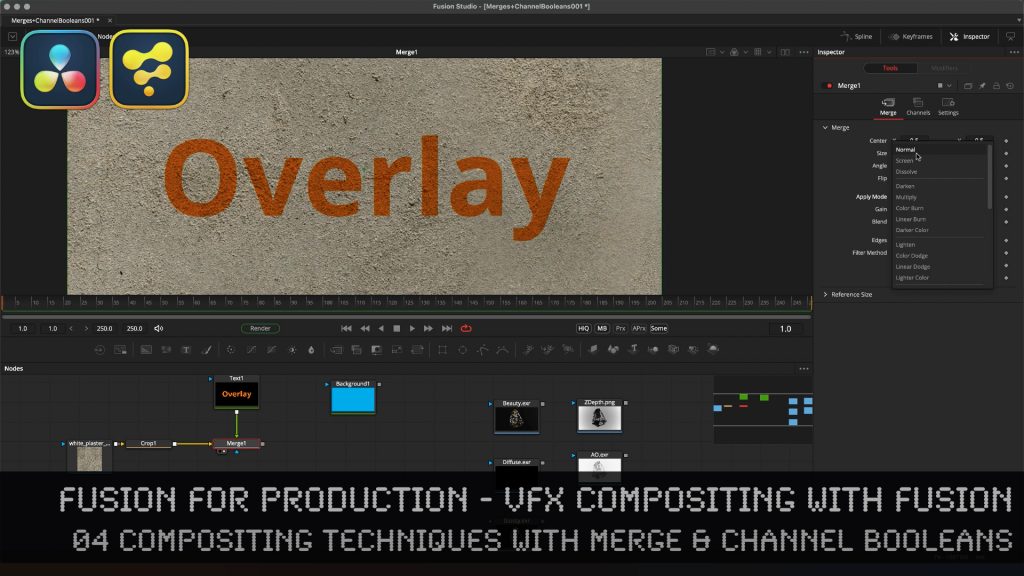
Learn the Fundamentals of the Merge tool & the almighty Channel Booleans tool in Fusion Studio.

Here is the Link to the tutorial and the whole series. VFX Compositing Techniques with Merge & Channel Booleans in Fusion Studio.

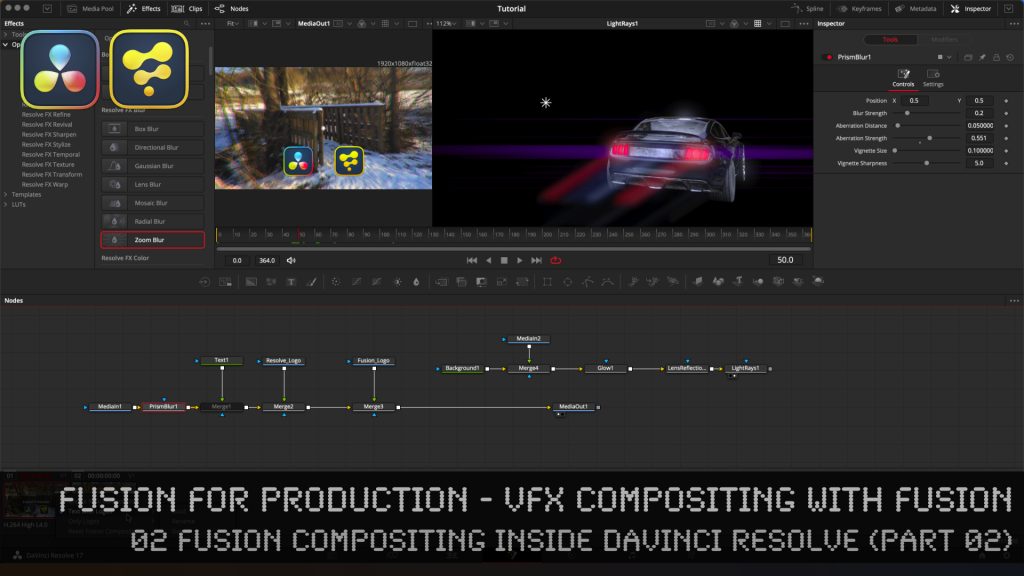
Fusion for Production - VFX Compositing with Fusion - 02b Fusion Compositing inside DaVinci Resolve

Here is the second part of last weeks tutorial. In this second part of lesson two, we will examine how to work with Fusion inside of DaVinci Resolve. I will show you different ways of making Fusion composites, some on the timeline, but also independent from the timeline. Also, you will learn how to have several versions on Fusion comps on a Timeline Clip for making variants or versions of your work.

Then we will discuss and solve some of the most asked problems when working with Fusion inside of the DaVinci Resolve Environment, for example how to import EXR and PNG sequences from Blender and other DCCs, how and when to use MediaIn Nodes correctly, how to add Loaders and Savers to your toolbar, how to split EXRs in severals Loaders with the Hos_SplitEXR script and how to get your Linear EXRs correctly into the Viewer. 

Also, we talk very briefly about ColorManagement for VFX assets in DaVinci Resolve and where to find the Resolve FX OFX plugins, which you can directly use inside of Fusion in the DaVinci Resolve Environment.

It’s quite a long tutorial, but I believe that it gives you everything you have to know if your want to start comping with Fusion inside of DaVinci Resolve and helps you around the common pitfalls.

If you have questions or topics, which should be added, please let me know.

If you want to support me for publishing more free tutorials you could join my Patreons:

Become a Patron!

or give me a fast Coffee time tip:
PayPal: https://paypal.me/pixeltrain

Have fun!

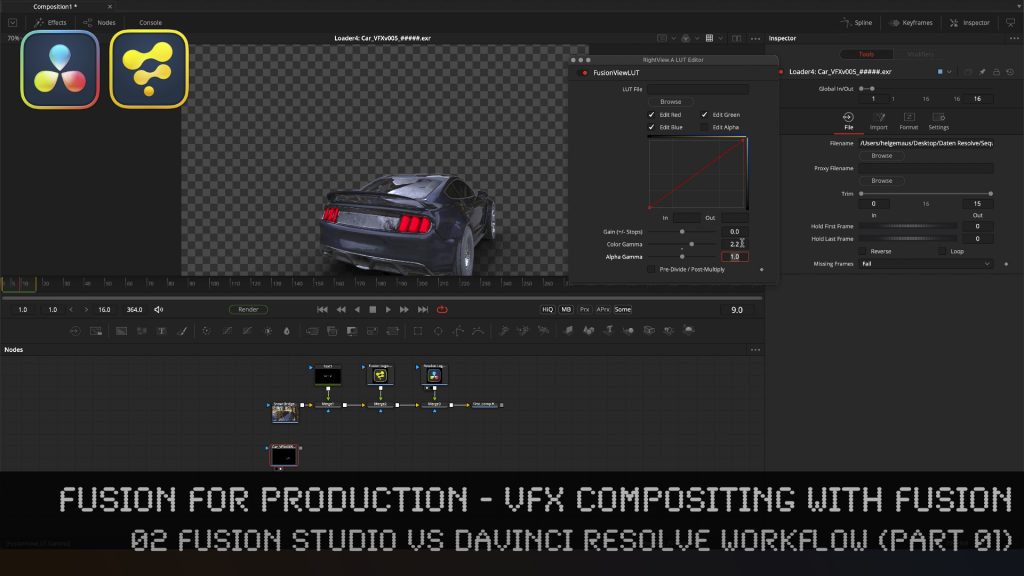
Fusion for Production - VFX Compositing with Fusion - 02a Fusion Studio vs DaVinci Resolve Workflow

In this tutorial series, we will talk about Blackmagic Fusion Studio and Blackmagic DaVinci Resolve (Fusion page) as a professional VFX Compositing package. We will dive into basic workflows and techniques to make your daily compositing work more effective and fun.

We start this tutorial by discussing the differences between using Fusion inside of the free version of DaVinci Resolve to the paid version of Fusion Studio and DaVinci Resolve Studio. I give you a list of features, what you get in the paid versions and why they are so useful in production. Also we talk about the differences in working in Fusion Studio vs the Fusion Page in DaVinci Resolve and when which of these workflows are more useful.

After that we will dive into Fusion Studio to learn about basic Fusion concepts, beginning with the User Interface, Node Trees, Tools and a first composite from Loader to the Saver for the final output. This should help you to understand Fusion as a node-based compositor and helps you in understanding the more advanced workflows in the second part of this lesson, which will then dive into Fusion Compositing inside of the DaVinci Resolve Environment.

These topics are covered in this tutorial:

00:00 Overview of the series

00:28 Topics list for lesson 02, part 01 & part 02

03:45 DaVinci Resolve / Fusion Studio free vs. Paid

08:34 Fusion Studio UI Overview

10:36 Compositing Settings / Global Settings

11:36 Frame Format, Frame Rate fps and Color Depth

12:53 Adding Nodes & Tools

14:05 Loading footage

14:22 Preview options in the Loader tool

15:21 Working with the Fusion Viewer

16:23 Adjusting the compositing length

17:09 Preview area in the timeline

17:35 Caching the timeline

18:20 Loading additional logos

19:07 Adding a text tool

19:24 Adding a sequential node

20:04 Arrange tools in the node graph

20:23 Merge Node and Transformations

20:35 Auto Proxy option in the Viewer

21:00 Faster ways of merging Nodes

21:53 Outputting a compositing with a Saver

22:47 Output Settings

23:08 Color Depth Settings for Source Nodes

24:16 Loader Setting for the import

25:06 Starting a Render Job

25:49 Importing an EXR sequence

27:20 Viewer options for transparencies

28:22 Setting a Viewer Gamma 2.2

29:09 Changing the Gamma in the Fusion View LUT

29:54 Using the Stefan Ihringer Viewer LUTS from Reactor

30:31 Setting the Preview Range

30:39 Importance of right mouse button on ui elements

31:15 Working with Audio in Fusion Studio 

32:14 Overview over the next part of Lesson 02b

As a Senior 3D & VFX Trainer, Helge Maus teaches 3D- & VFX Applications for 20 years. His focus lies on VFX, but he also works with many studios and agencies from different visualization areas. He focuses on Houdini FX, Blender, and NUKE for his daily work and training.

If you have questions or topics, which should be added, please let me know.

If you want to support me for publishing more free tutorials you could join my Patreons:

Become a Patron!

or give me a fast Coffee time tip:
PayPal: https://paypal.me/pixeltrain

Find more information on www.pixeltrain.net

YouTube: https://www.youtube.com/pixeltrain3DVFXTrainings
Twitter: https://twitter.com/pixeltrain
Blog: http://www.helgemaus.com
Mastodon: https://mastodon.art/web/@pixeltrain3d
Instagram: https://www.instagram.com/pixeltrain3d/
LinkedIn: https://www.linkedin.com/in/pixeltrain/
Artstation: https://www.artstation.com/pixeltrain

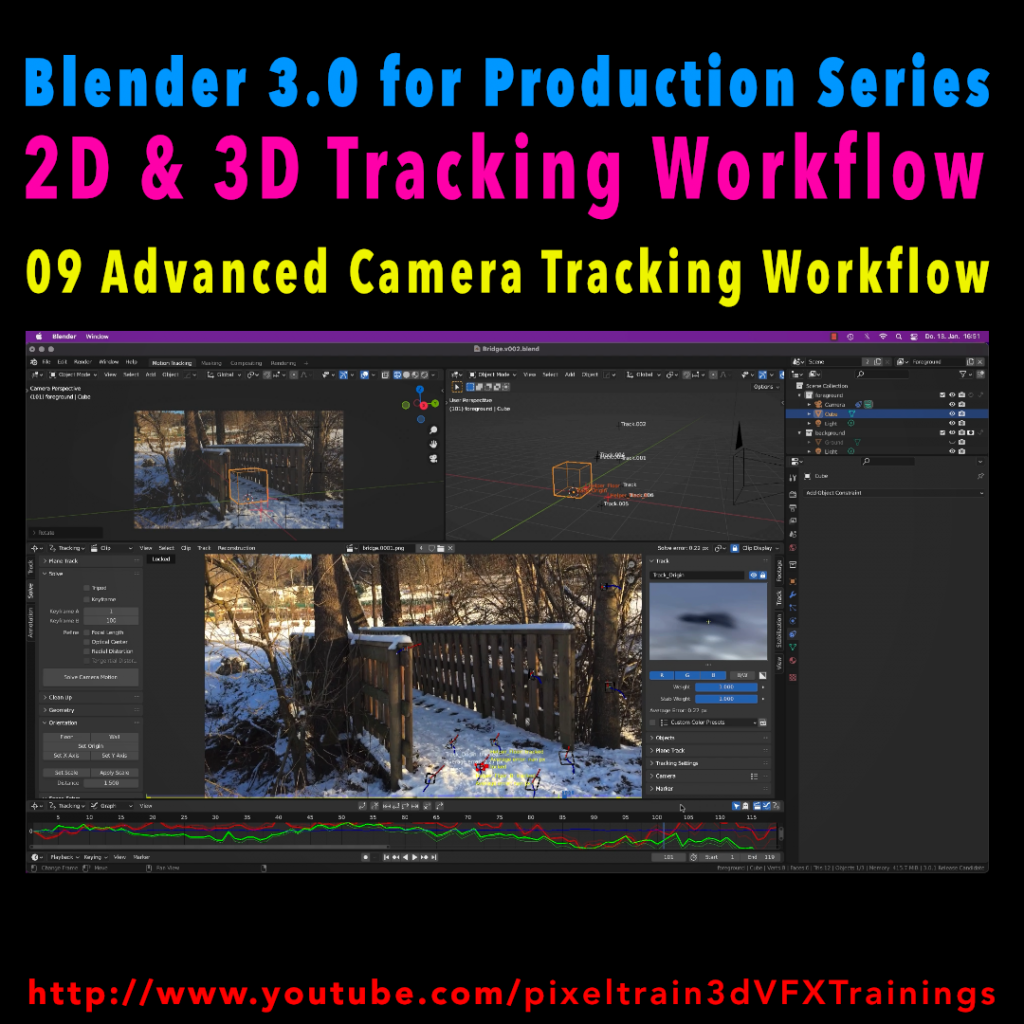
Blender 3.0 for Production - 2D & 3D Tracking Workflow - 09 Advanced Camera Tracking Workflow

In todays lesson we will dive into the Camera-Tracking Workflow of a scene inside Blender 3.0 . You will learn about “good and bad trackers”, solving strategies, build a reconstruction scene and most important, how to get your solve error down.

Hope you like it!

Helge

Blender 3.0 for Production – 2D & 3D Tracking Workflow – 09 Advanced Camera Tracking Workflow

In this tutorial series, we will talk about Blender as a solution for 3D Camera and Object Tracking. Step by Step you will learn how to use Blender for preparing your footage in the Video Sequence Editor (VSE) and getting used to the Movie Clip Editor. Then we will cover the important fundamentals of 2D-Tracking in Blender and also some use-cases for directly using these data. Then we build upon these 2D-Tracks and start solving a 3D-Camera and talk about good and bad tracks, nodal shots, tricks like offset-tracking, joining of tracks, and analyzing solve problems. In the final tutorials, we will finish with Object-tracking for props replacement. After this tutorial series, you have a solid understanding of Blender’s Camera and Object Tracking and how to use the solved data inside of Blender or in other applications like Maya, Cinema, or Houdini.

These topics are covered in this tutorial:

Setting up the Tracking Sequence

Learn to analyze a shot for tracking

Rules for good and bad trackers

Making the default tracking settings

2D track the main trackers

Tracking Graph / Tracking Dope Sheet

Solver Panel

Setting the keyframes

Understanding the Solve Error

Interpreting the Solve Error Graph

Sorting with the Solve Error

Checking for suspicious trackers

Setting the correct Camera data

Finding the correct focal length

Solver Pie menu

Refine Focal Length

Optical Center

Lens Distortion

Display undistorted plate

Generate a scene setup

Activate display options for trackers

Setting up the floor

Setting up orientation axis

Setting up a scale reference

Solving helper trackers

Zero-weight trackers

Color Presets for trackers

Blocking out a helper object

Making a viewport playblast

Using DJV2 as animation player

If you want to use the same footage, here is my Gumroad link:

https://pixeltrain3d.gumroad.com/l/GEdjT

Be aware, that these files are included in my Patreon 😉

https://www.patreon.com/pixeltrain3d

This tutorial series „Blender for Production“ focuses on Blender as a full Production Suite for (Indie) 3D- & VFX Productions. In these tutorials, I will explain how to work with the different Modules of Blender and how they are connected. I will give you an introduction to the specific functionalities, but also the production context and workflows, which can help you to use Blender in your productions. 

As a Senior 3D & VFX Trainer, Helge Maus teaches 3D- & VFX Applications for 20 years. His focus lies on VFX, but he also works with many studios and agencies from different visualization areas. He focuses on Houdini FX, Blender, and NUKE for his daily work and training.

If you have questions or topics, which should be added, please let me know.

If you want to support Helge Maus for publishing more free tutorials you could join his Patreons:

https://www.patreon.com/pixeltrain3d

Find more information on www.pixeltrain.net

YouTube: https://www.youtube.com/pixeltrain3DVFXTrainings

Twitter: https://twitter.com/pixeltrain

Blog: http://www.helgemaus.com

Instagram: https://www.instagram.com/pixeltrain3d/

LinkedIn: https://www.linkedin.com/in/pixeltrain/

Artstation: https://www.artstation.com/pixeltrain

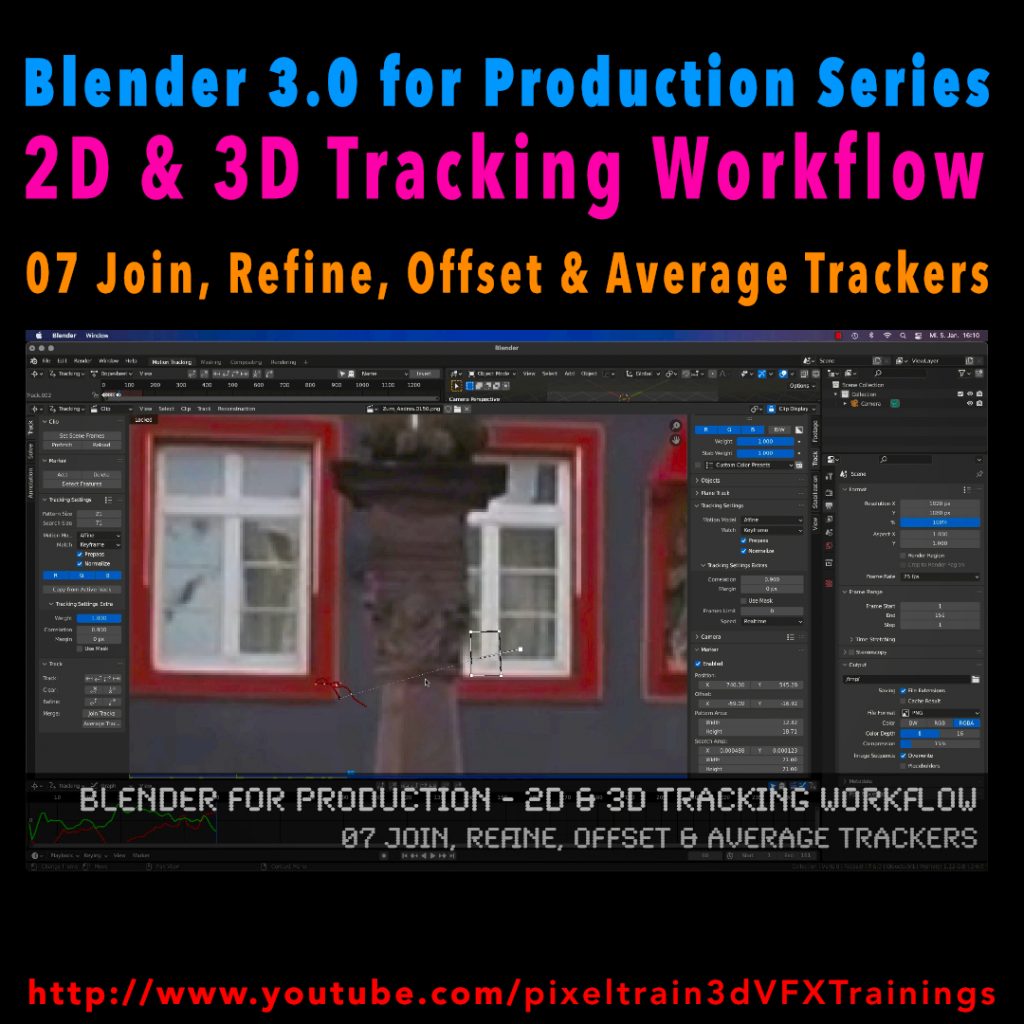
Blender 3.0 for Production - 2D & 3D Tracking Workflow - 07 Join, Refine, Offset & Average Trackers

In this tutorial series, we will talk about Blender as a solution for 3D Camera and Object Tracking. Step by Step you will learn how to use Blender for preparing your footage in the Video Sequence Editor (VSE) and getting used to the Movie Clip Editor. Then we will cover the important fundamentals of 2D-Tracking in Blender and also some use-cases for directly using these data. Then we build upon these 2D-Tracks and start solving a 3D-Camera and talk about good and bad tracks, nodal shots, tricks like offset-tracking, joining of tracks, and analyzing solve problems. In the final tutorials, we will finish with Object-tracking for props replacement. After this tutorial series, you have a solid understanding of Blender’s Camera and Object Tracking and how to use the solved data inside of Blender or in other applications like Maya, Cinema, or Houdini.

Blender 3.0 for Production – 2D & 3D Tracking Workflow – 07 Join, Refine, Offset & Average Trackers

These topics are covered in this tutorial:

Loading the Footage & Project Settings

Analyzing the footage

Tracker Settings

Configure the search area

Track step-by-step

Adjusting the pattern

Tracking Pie menu

Cleaning tracks

Disabling Trackers

Working with two trackers

Joining trackers

Manually enabling and disabling trackers

Refining Trackers

Offset Tracking

Adjusting Offsets while tracking

Resetting an Offset Track

Generating an Average Tracker

If you want to use the same footage, here is my Gumroad link:

https://pixeltrain3d.gumroad.com/l/GEdjT

Be aware, that these files are included in my Patreon 😉

https://www.patreon.com/pixeltrain3d

This tutorial series „Blender for Production“ focuses on Blender as a full Production Suite for (Indie) 3D- & VFX Productions. In these tutorials, I will explain how to work with the different Modules of Blender and how they are connected. I will give you an introduction to the specific functionalities, but also the production context and workflows, which can help you to use Blender in your productions. 

As a Senior 3D & VFX Trainer, Helge Maus teaches 3D- & VFX Applications for 20 years. His focus lies on VFX, but he also works with many studios and agencies from different visualization areas. He focuses on Houdini FX, Blender, and NUKE for his daily work and training.

If you have questions or topics, which should be added, please let me know.

If you want to support Helge Maus for publishing more free tutorials you could join his Patreons:

https://www.patreon.com/pixeltrain3d

Find more information on www.pixeltrain.net

YouTube: https://www.youtube.com/pixeltrain3DVFXTrainings
Twitter: https://twitter.com/pixeltrain
Blog: http://www.helgemaus.com
Instagram: https://www.instagram.com/pixeltrain3d/
LinkedIn: https://www.linkedin.com/in/pixeltrain/
Artstation: https://www.artstation.com/pixeltrain

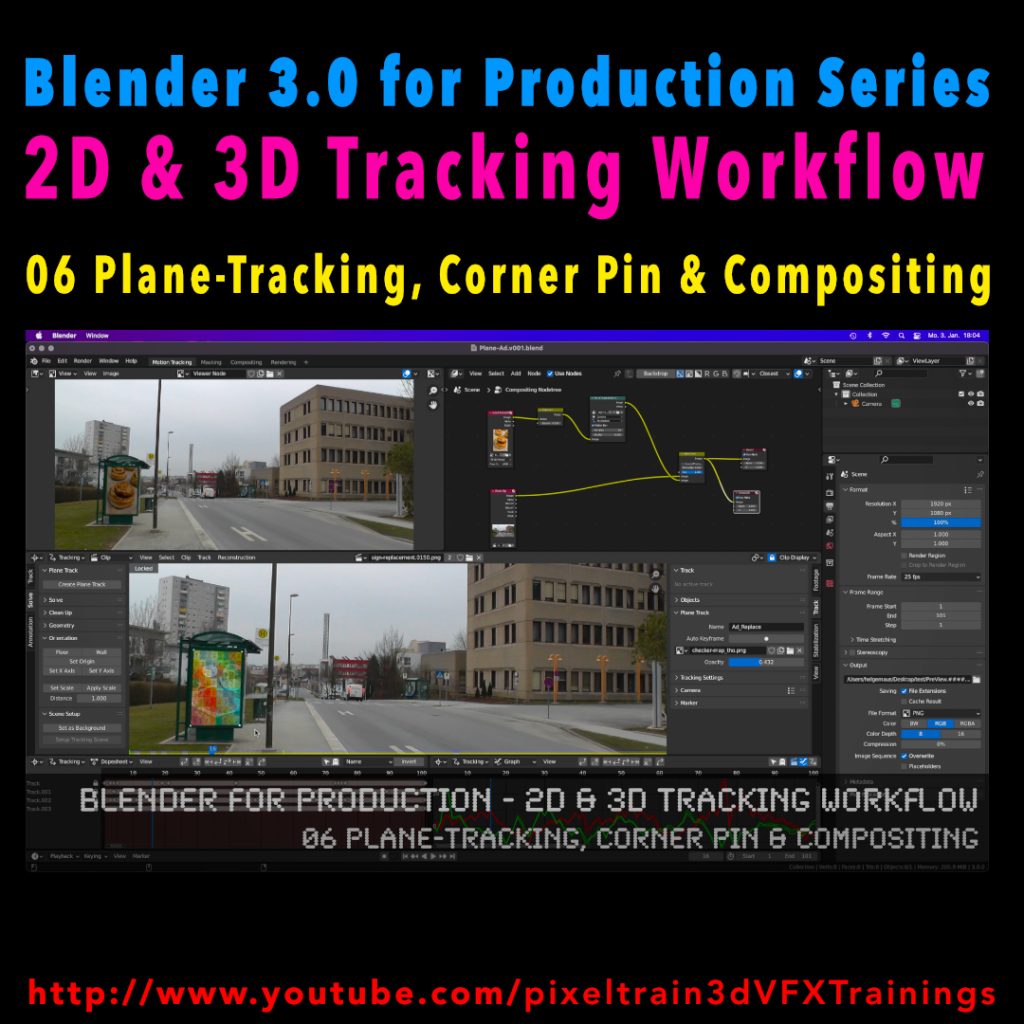
Blender 3.0 for Production - 2D & 3D Tracking Workflow - 06 Plane-Tracking, Corner Pin & Compositing

My next free “Blender 3.0 for Production” tutorial is out.
Let’s talk about plane-tracking, corner pining and the integration with the built-in compositor.

Have fun!

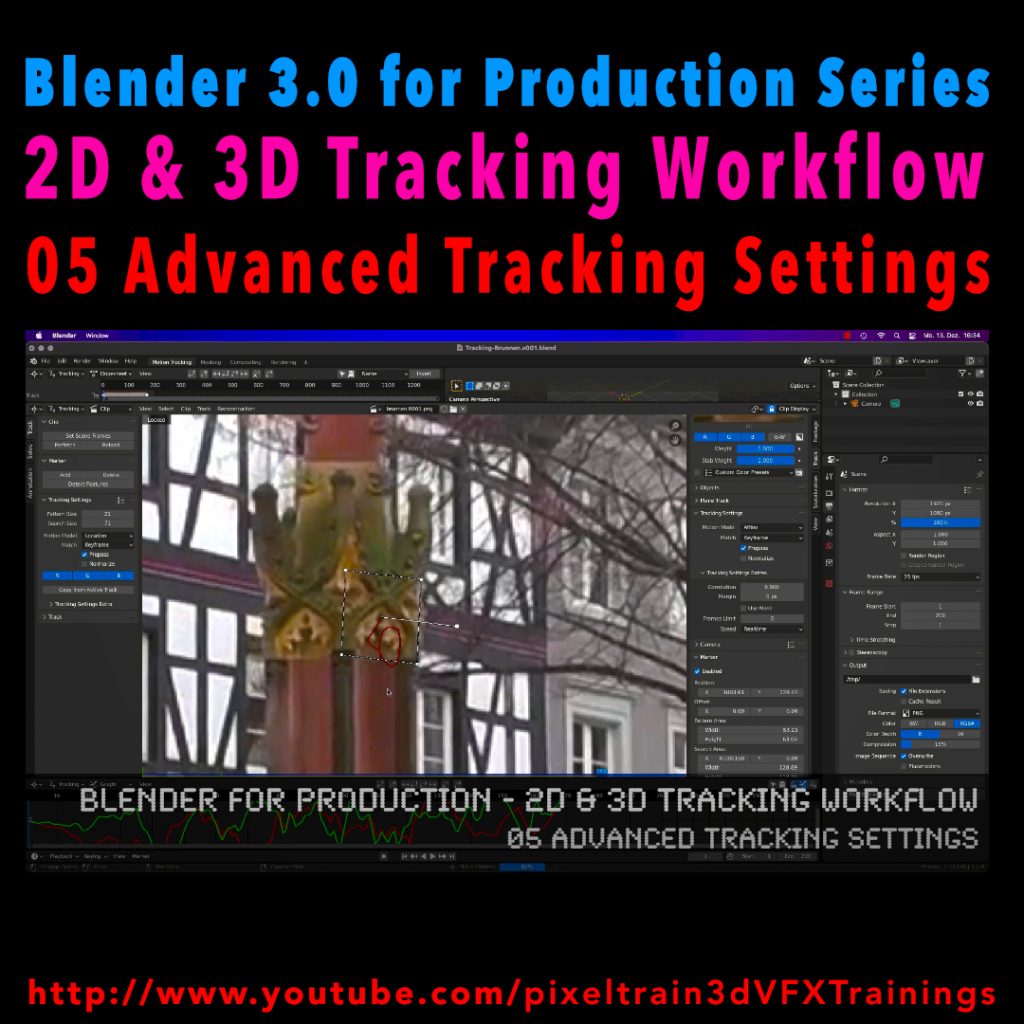
Blender 3.0 for Production - 2D & 3D Tracking Workflow - 05 Advanced Tracking Settings

Let’s look into the advanced settings of the Blender 2D-Tracking system.
My next tutorial of my “Blender for Production” tutorial series is online.

Have fun with it!

YouTube:
👉 https://www.youtube.com/pixeltrain3DVFXTrainings