Blender Studio Project - Heist

Shortly after Sprite Fright, Blender Studio has today announced the next Blender Studio Project. The goal is to develop a high-visual-impact, action-packed 2-minutes-long animation, which is is inspired by the game cinematics and realtime demos formats.

The main goals, beside of making a great short like always, are:

– Challenge Blender and the creative team to make characters and environments at an unprecedented level of realism and complexity

– Push Blender’s capabilities in the interactive PBR workflow, improving and developing new tools (EEVEE, texture painting, baking, etc.)

– Develop and share production assets and pipeline with Blender Studio supporters, and with the film and games industry

This way Blender and it’s tools and workflows will develop much more.

Read more about this project here:

https://studio.blender.org/blog/announcing-project-heist-high-end-cinematic-experience/

Looking forward to it 🙂

Helge
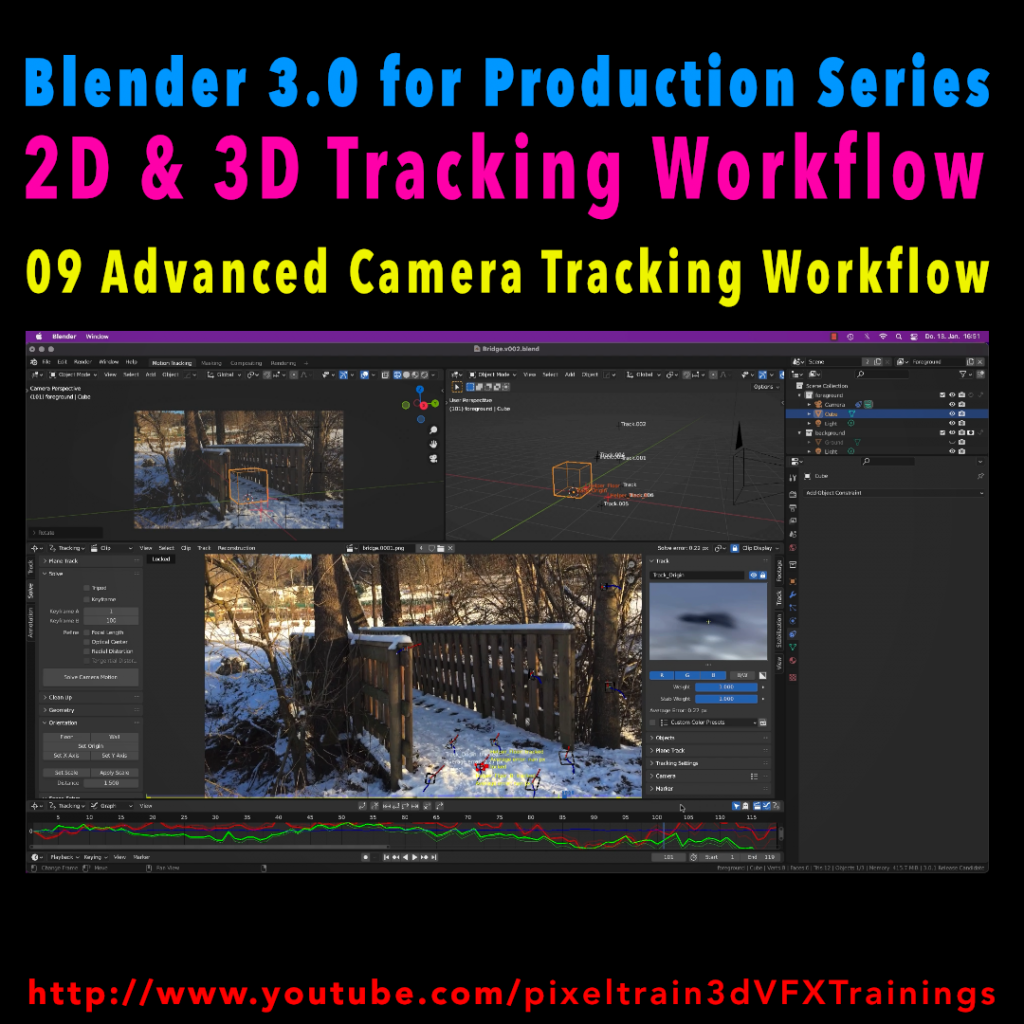
Blender 3.0 for Production - 2D & 3D Tracking Workflow - 09 Advanced Camera Tracking Workflow

In todays lesson we will dive into the Camera-Tracking Workflow of a scene inside Blender 3.0 . You will learn about “good and bad trackers”, solving strategies, build a reconstruction scene and most important, how to get your solve error down.

Hope you like it!

Helge

Blender 3.0 for Production – 2D & 3D Tracking Workflow – 09 Advanced Camera Tracking Workflow

In this tutorial series, we will talk about Blender as a solution for 3D Camera and Object Tracking. Step by Step you will learn how to use Blender for preparing your footage in the Video Sequence Editor (VSE) and getting used to the Movie Clip Editor. Then we will cover the important fundamentals of 2D-Tracking in Blender and also some use-cases for directly using these data. Then we build upon these 2D-Tracks and start solving a 3D-Camera and talk about good and bad tracks, nodal shots, tricks like offset-tracking, joining of tracks, and analyzing solve problems. In the final tutorials, we will finish with Object-tracking for props replacement. After this tutorial series, you have a solid understanding of Blender’s Camera and Object Tracking and how to use the solved data inside of Blender or in other applications like Maya, Cinema, or Houdini.

These topics are covered in this tutorial:

Setting up the Tracking Sequence

Learn to analyze a shot for tracking

Rules for good and bad trackers

Making the default tracking settings

2D track the main trackers

Tracking Graph / Tracking Dope Sheet

Solver Panel

Setting the keyframes

Understanding the Solve Error

Interpreting the Solve Error Graph

Sorting with the Solve Error

Checking for suspicious trackers

Setting the correct Camera data

Finding the correct focal length

Solver Pie menu

Refine Focal Length

Optical Center

Lens Distortion

Display undistorted plate

Generate a scene setup

Activate display options for trackers

Setting up the floor

Setting up orientation axis

Setting up a scale reference

Solving helper trackers

Zero-weight trackers

Color Presets for trackers

Blocking out a helper object

Making a viewport playblast

Using DJV2 as animation player

If you want to use the same footage, here is my Gumroad link:

https://pixeltrain3d.gumroad.com/l/GEdjT

Be aware, that these files are included in my Patreon 😉

https://www.patreon.com/pixeltrain3d

This tutorial series „Blender for Production“ focuses on Blender as a full Production Suite for (Indie) 3D- & VFX Productions. In these tutorials, I will explain how to work with the different Modules of Blender and how they are connected. I will give you an introduction to the specific functionalities, but also the production context and workflows, which can help you to use Blender in your productions. 

As a Senior 3D & VFX Trainer, Helge Maus teaches 3D- & VFX Applications for 20 years. His focus lies on VFX, but he also works with many studios and agencies from different visualization areas. He focuses on Houdini FX, Blender, and NUKE for his daily work and training.

If you have questions or topics, which should be added, please let me know.

If you want to support Helge Maus for publishing more free tutorials you could join his Patreons:

https://www.patreon.com/pixeltrain3d

Find more information on www.pixeltrain.net

YouTube: https://www.youtube.com/pixeltrain3DVFXTrainings

Twitter: https://twitter.com/pixeltrain

Blog: http://www.helgemaus.com

Instagram: https://www.instagram.com/pixeltrain3d/

LinkedIn: https://www.linkedin.com/in/pixeltrain/

Artstation: https://www.artstation.com/pixeltrain

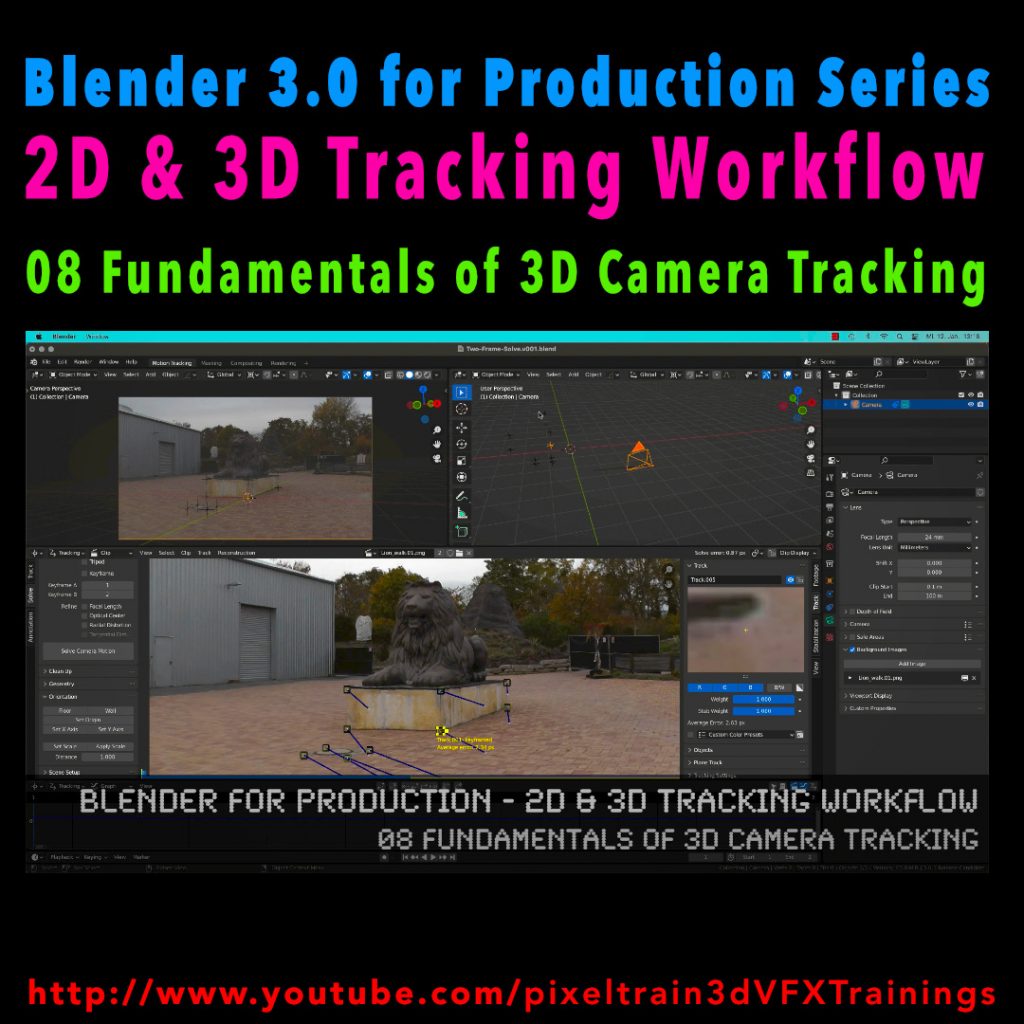
Blender 3.0 for Production - 2D & 3D Tracking Workflow - 08 Fundamentals of 3D Camera Tracking

In this tutorial series, we will talk about Blender as a solution for 3D Camera and Object Tracking. Step by Step you will learn how to use Blender for preparing your footage in the Video Sequence Editor (VSE) and getting used to the Movie Clip Editor. Then we will cover the important fundamentals of 2D-Tracking in Blender and also some use-cases for directly using these data. Then we build upon these 2D-Tracks and start solving a 3D-Camera and talk about good and bad tracks, nodal shots, tricks like offset-tracking, joining of tracks, and analyzing solve problems. In the final tutorials, we will finish with Object-tracking for props replacement. After this tutorial series, you have a solid understanding of Blender’s Camera and Object Tracking and how to use the solved data inside of Blender or in other applications like Maya, Cinema, or Houdini.

Blender 3.0 for Production – 2D & 3D Tracking Workflow – 08 Fundamentals of 3D Camera Tracking

These topics are covered in this tutorial:

Loading 2 Frames as Image Sequence

Purpose of Camera Tracking

Needs for 3D-Object integration

Understanding Parallax & Photogrammetry

Solving process & Keyframes

Stereo Photogrammetry

Rules for valid trackers

Good trackers, bad trackers

Tracking two images

Setting the best Keyframes

Solve Camera Motion

Understanding the Solve Error

2D Trackers vs. 3D Markers

Average Error and Reprojection Error

Camera Constraints

Camera Solver Constraint

Add the Plate into the Camera Background

Display overlays for Motion Tracking

Limitations of a Solver (Size and Orientation)

Manual Orientation of the scene

Understanding the Orientation functions

Floor and Origin

Setting axes

Set the scene scale from reference

Camera Settings

Backsize and Focal Length

Setting Camera Settings for the Solve

Searching the right Focal Length

Refine Mode for Focal Length

Finding the right settings

If you want to use the same footage, here is my Gumroad link:

https://pixeltrain3d.gumroad.com/l/GEdjT

Be aware, that these files are included in my Patreon 😉

https://www.patreon.com/pixeltrain3d

This tutorial series „Blender for Production“ focuses on Blender as a full Production Suite for (Indie) 3D- & VFX Productions. In these tutorials, I will explain how to work with the different Modules of Blender and how they are connected. I will give you an introduction to the specific functionalities, but also the production context and workflows, which can help you to use Blender in your productions. 

As a Senior 3D & VFX Trainer, Helge Maus teaches 3D- & VFX Applications for 20 years. His focus lies on VFX, but he also works with many studios and agencies from different visualization areas. He focuses on Houdini FX, Blender, and NUKE for his daily work and training.

If you have questions or topics, which should be added, please let me know.

If you want to support Helge Maus for publishing more free tutorials you could join his Patreons:

https://www.patreon.com/pixeltrain3d

Find more information on www.pixeltrain.net

YouTube: https://www.youtube.com/pixeltrain3DVFXTrainings
Twitter: https://twitter.com/pixeltrain
Blog: http://www.helgemaus.com
Instagram: https://www.instagram.com/pixeltrain3d/
LinkedIn: https://www.linkedin.com/in/pixeltrain/
Artstation: https://www.artstation.com/pixeltrain

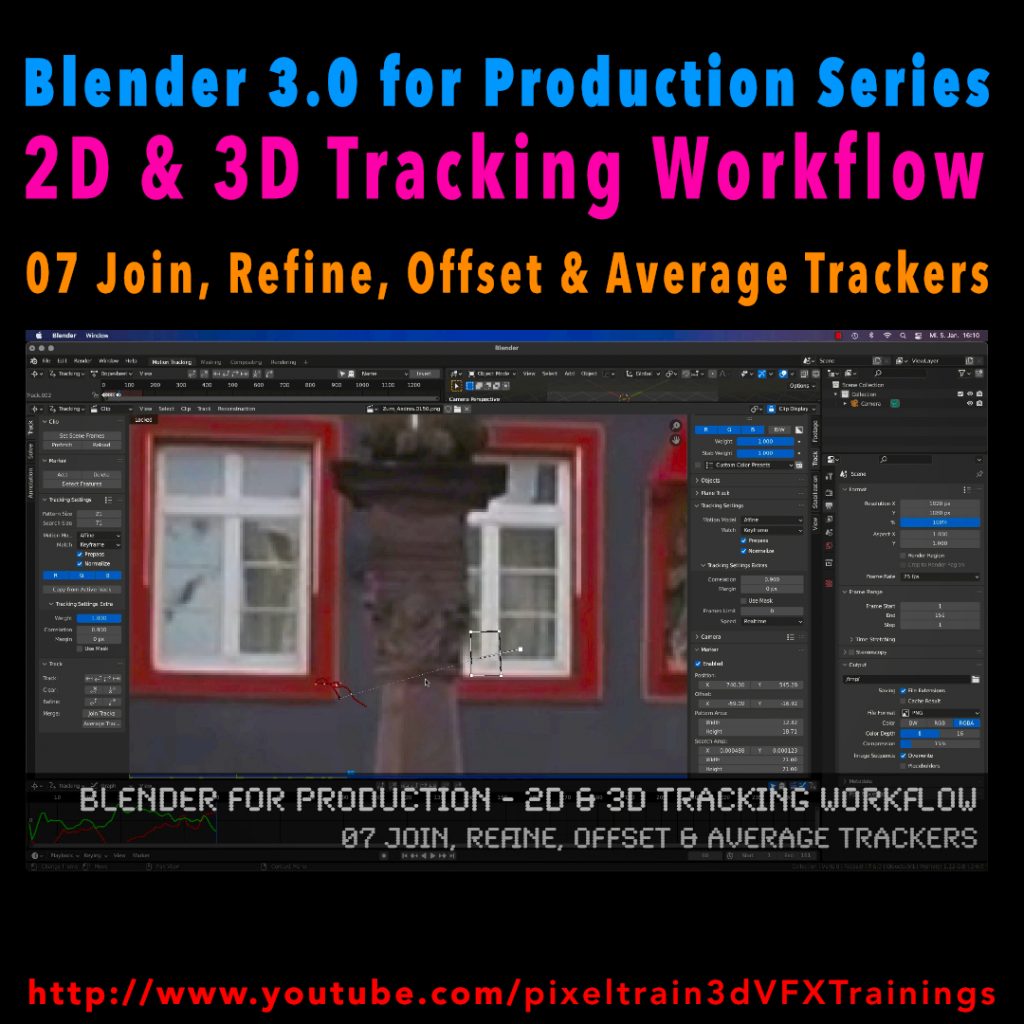
Blender 3.0 for Production - 2D & 3D Tracking Workflow - 07 Join, Refine, Offset & Average Trackers

In this tutorial series, we will talk about Blender as a solution for 3D Camera and Object Tracking. Step by Step you will learn how to use Blender for preparing your footage in the Video Sequence Editor (VSE) and getting used to the Movie Clip Editor. Then we will cover the important fundamentals of 2D-Tracking in Blender and also some use-cases for directly using these data. Then we build upon these 2D-Tracks and start solving a 3D-Camera and talk about good and bad tracks, nodal shots, tricks like offset-tracking, joining of tracks, and analyzing solve problems. In the final tutorials, we will finish with Object-tracking for props replacement. After this tutorial series, you have a solid understanding of Blender’s Camera and Object Tracking and how to use the solved data inside of Blender or in other applications like Maya, Cinema, or Houdini.

Blender 3.0 for Production – 2D & 3D Tracking Workflow – 07 Join, Refine, Offset & Average Trackers

These topics are covered in this tutorial:

Loading the Footage & Project Settings

Analyzing the footage

Tracker Settings

Configure the search area

Track step-by-step

Adjusting the pattern

Tracking Pie menu

Cleaning tracks

Disabling Trackers

Working with two trackers

Joining trackers

Manually enabling and disabling trackers

Refining Trackers

Offset Tracking

Adjusting Offsets while tracking

Resetting an Offset Track

Generating an Average Tracker

If you want to use the same footage, here is my Gumroad link:

https://pixeltrain3d.gumroad.com/l/GEdjT

Be aware, that these files are included in my Patreon 😉

https://www.patreon.com/pixeltrain3d

This tutorial series „Blender for Production“ focuses on Blender as a full Production Suite for (Indie) 3D- & VFX Productions. In these tutorials, I will explain how to work with the different Modules of Blender and how they are connected. I will give you an introduction to the specific functionalities, but also the production context and workflows, which can help you to use Blender in your productions. 

As a Senior 3D & VFX Trainer, Helge Maus teaches 3D- & VFX Applications for 20 years. His focus lies on VFX, but he also works with many studios and agencies from different visualization areas. He focuses on Houdini FX, Blender, and NUKE for his daily work and training.

If you have questions or topics, which should be added, please let me know.

If you want to support Helge Maus for publishing more free tutorials you could join his Patreons:

https://www.patreon.com/pixeltrain3d

Find more information on www.pixeltrain.net

YouTube: https://www.youtube.com/pixeltrain3DVFXTrainings
Twitter: https://twitter.com/pixeltrain
Blog: http://www.helgemaus.com
Instagram: https://www.instagram.com/pixeltrain3d/
LinkedIn: https://www.linkedin.com/in/pixeltrain/
Artstation: https://www.artstation.com/pixeltrain

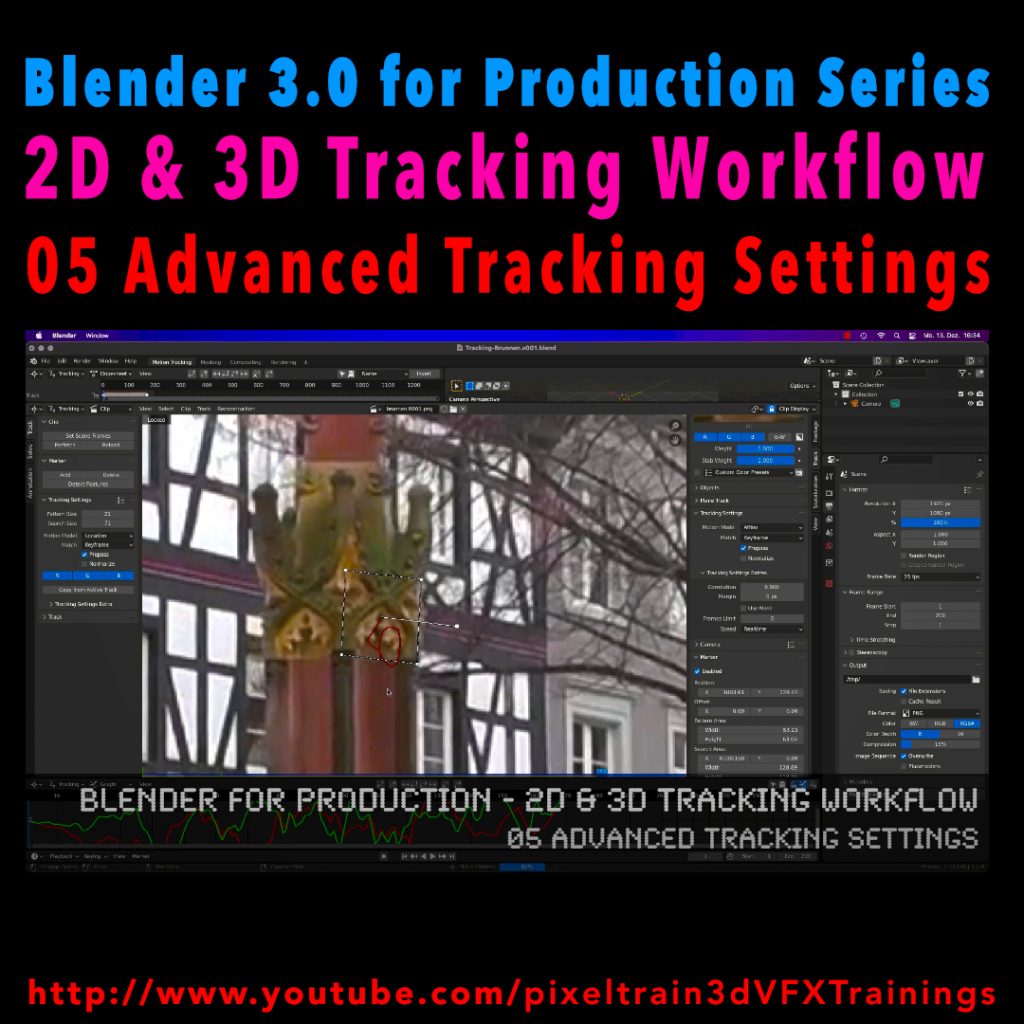
Blender 3.0 for Production - 2D & 3D Tracking Workflow - 05 Advanced Tracking Settings

Let’s look into the advanced settings of the Blender 2D-Tracking system.
My next tutorial of my “Blender for Production” tutorial series is online.

Have fun with it!

YouTube:
👉 https://www.youtube.com/pixeltrain3DVFXTrainings

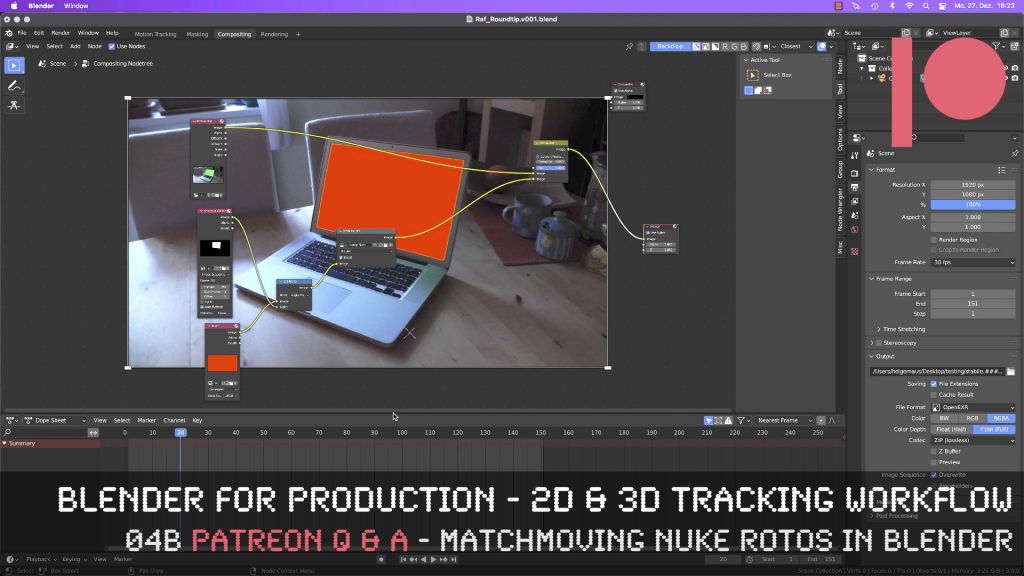
This tutorial is an answer to a pixeltrain Patreon question: It shows the roundtrip of a stabilized shot from Blender’s Tracking system to NUKE (or any other Compositing package like Fusion or AfterEffects) and how to use Rotoscoping data from there back in Blender. If you want to join my Patreon community, you can find it here: https://www.patreon.com/pixeltrain3d

These topics are covered in this tutorial:

  • Writing out a stabilized shot as EXRs from Blender
  • NUKE project settings
  • Keying out the screen
  • Shuffle the Alpha into RGBA
  • Writing out data from NUKE
  • Importing the NUKE EXRs into the Blender compositor
  • Generating a Solid Color Plane
  • Inject an alpha to a plate
  • Comp the plates together
  • Understand stabilize and matchmove

If you want to use the same footage, here is my Gumroad link:

https://pixeltrain3d.gumroad.com/l/GEdjT

Be aware, that these files are included in my Patreon 😉

https://www.patreon.com/pixeltrain3d

This tutorial series „Blender for Production“ focuses on Blender as a full Production Suite for (Indie) 3D- & VFX Productions. In these tutorials, I will explain how to work with the different Modules of Blender and how they are connected. I will give you an introduction to the specific functionalities, but also the production context and workflows, which can help you to use Blender in your productions. 

As a Senior 3D & VFX Trainer, Helge Maus teaches 3D- & VFX Applications for 20 years. His focus lies on VFX, but he also works with many studios and agencies from different visualization areas. He focuses on Houdini FX, Blender, and NUKE for his daily work and training.

If you have questions or topics, which should be added, please let me know.

If you want to support Helge Maus for publishing more free tutorials you could join his Patreons:

https://www.patreon.com/pixeltrain3d

Find more information on http://www.pixeltrain.net
YouTube: https://www.youtube.com/pixeltrain3DVFXTrainings
Twitter: https://twitter.com/pixeltrain
Instagram: https://www.instagram.com/pixeltrain3d/
LinkedIn: https://www.linkedin.com/in/pixeltrain/
Artstation: https://www.artstation.com/pixeltrain

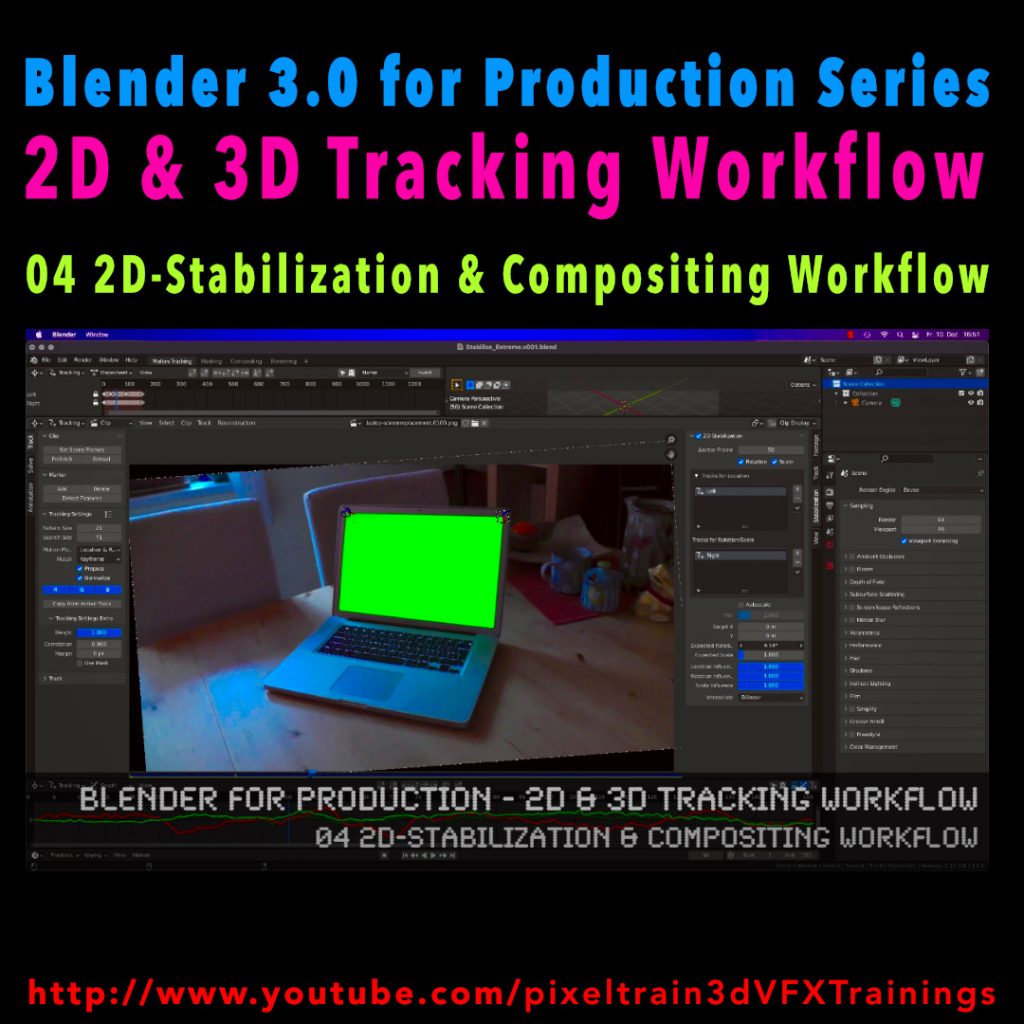
Blender 3.0 for Production - 2D & 3D Tracking Workflow - 04 2D-Stabilization & Compositing Workflow

Here’s the next lesson of our Blender 2D- & 3D-Tracking tutorials.


After laying the fundamentals in the last tutorials we will now take a look into the first use of our tracking knowledge for making stabilizations. We use two examples for that and we also use the Blender Compositor. I hope you like it.

👉 YouTube:

More tutorials of this series will follow shortly. Have a great holiday season 🌲 🙂

If you want to use the same footage, here is my Gumroad link:

https://pixeltrain3d.gumroad.com/l/GEdjT

Be aware, that these files are included in my Patreon 😉

https://www.patreon.com/pixeltrain3d

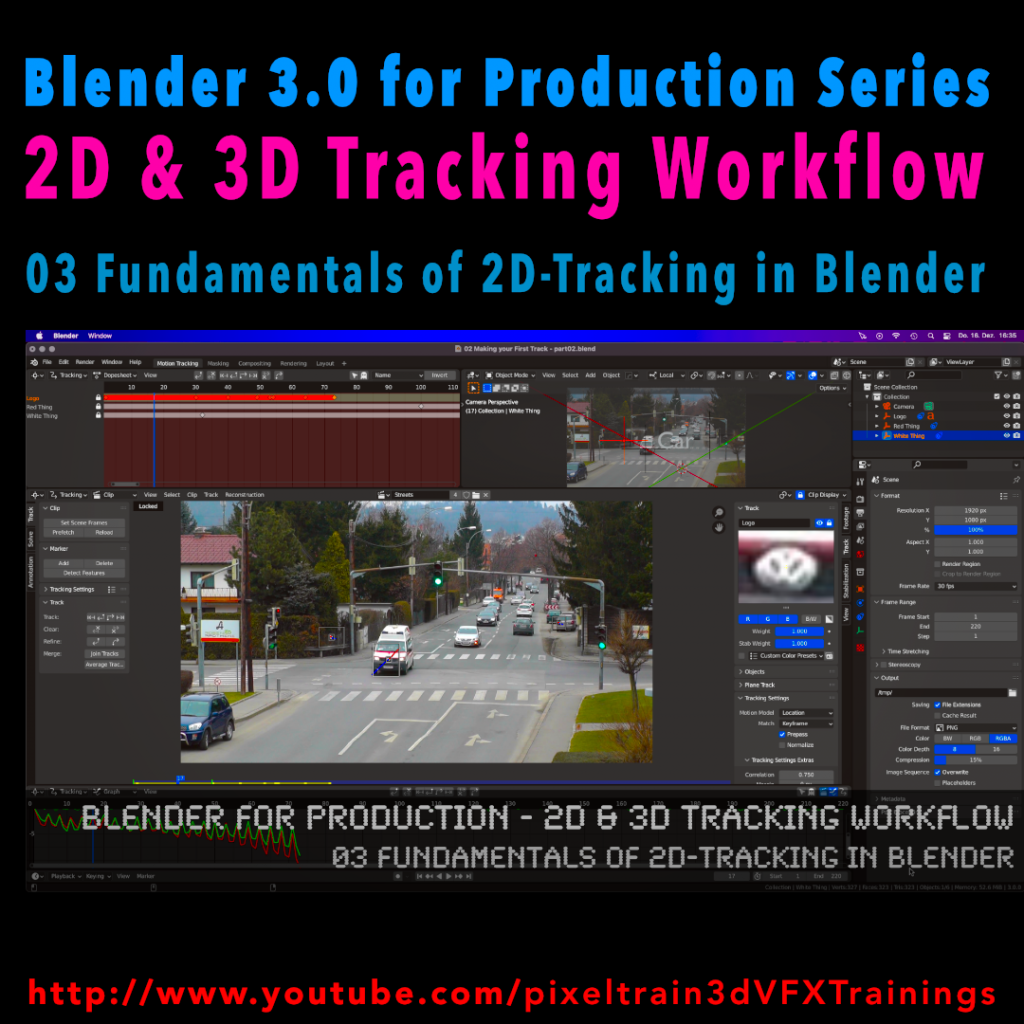
Last week we started the new “Blender 3.0 for Production” series about 2D- & 3D Tracking in Blender. After preparing the footage and an overview of the Movie clip editor in the first two episodes we now dive into the fundamentals of 2D tracking.

Many more episodes will follow 😉

Have fun! 😊

👉 YouTube:

If you want to support these kinds of videos, you can become a pixeltrain Patreon 😉

https://www.patreon.com/pixeltrain3d

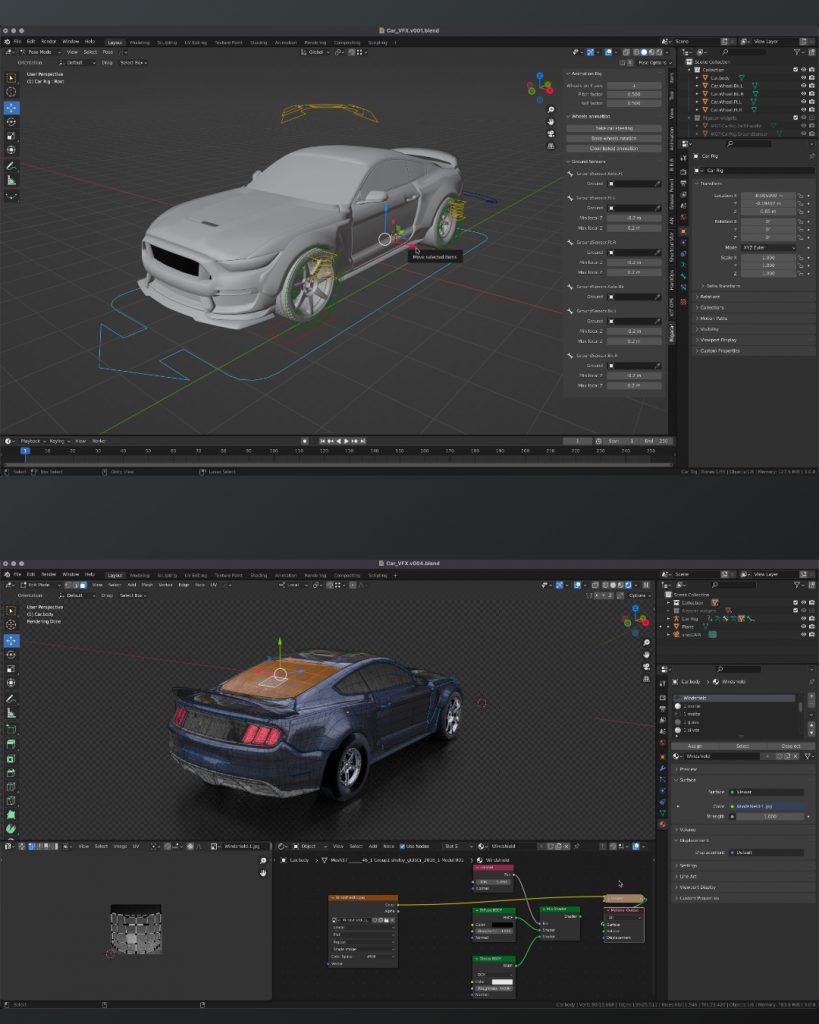
What do I love about Blender? That working in the application is so integrated, fast & flexible, for example for shading while changing some uvs on the fly with Cycles still running.

Also the amazing bunch of build-in add-ons for so many useful things, from archviz to generating trees. And, of course, the Add-ons made by talented programmers are so affordable or even free. For example this Car Rig add-on. Needless to say, subscription-free.

Yes, still many areas can be improved, but so much stuff is there already.

If you want to dive deeper into Blender, visit my YouTube channel for many free tutorials:
https://www.youtube.com/pixeltrain3DVFXTrainings

Blender 3.0 for Production - Tracking

Here we go – today I’ve started the next free tutorial series “Blender 3.0 for Production”. The topic this time is “2D- & 3D-Tracking Workflows in Blender”. 

So, if you ever wanted to learn Camera-Tracking, Matchmoving, and Object-Tracking inside of Blender and also get a deep dive into techniques and workflows for exchanging these data with the Compositor and also external applications like Houdini, Maya, Cinema 4D, or NUKE, then this series is for you.

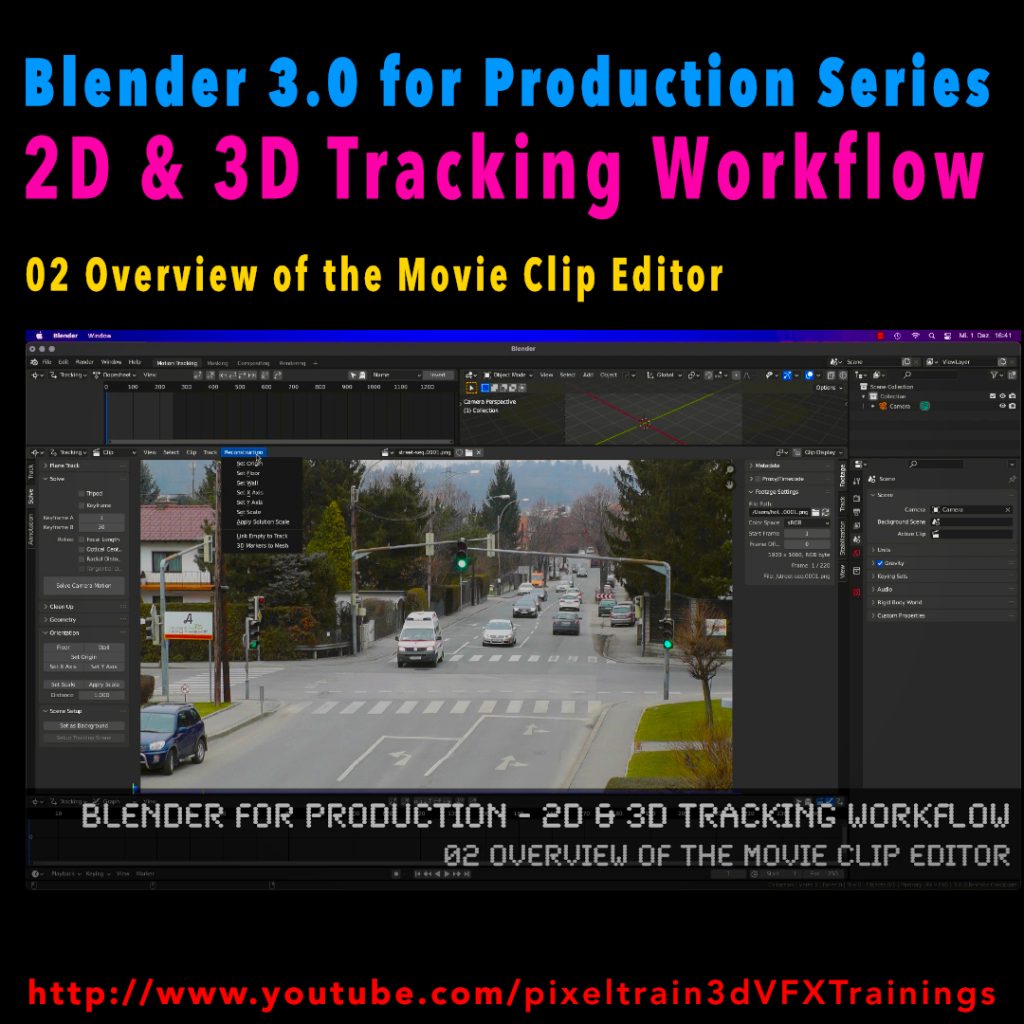
These first two lessons are about preparing your footage for Tracking inside of Blender with the help of the built-in Video Sequence Editor (VSE). Also, we take a brief tour of the MovieClip Editor. The following tutorials will drop in the next week. Have fun!

Blender 3.0 for Production – 2D & 3D Tracking Workflow – 01 Preparing Footage in the VSE
https://youtu.be/GdUa73KxLsw

Blender 3.0 for Production – 2D & 3D Tracking Workflow – 02 Overview of the Movie Clip Editor
https://youtu.be/K99UNNzYur4

Have fun!

Helge