
This tutorial is a demo lesson from my Publication „pixeltrain Blender Fundamentals >> Fast Forward“.

Blender Fundamentals – Multiple Materials on one object & Slots (Demo lesson)

In this tutorial, you will learn how to assign Materials through the slot system of Blender to mesh parts. You will understand what a. slot is, how to make effective selections and assignment and how to assign multiple Materials to one mesh.

Here are the links for my Blender Fundamentals publication. In over 120 lessons with a duration of 20+ hours, I will take you through the complete fundamentals of Blender and the basic workflows you need to know to get started with this amazing free software.

👉 YouTube Trailer

👉 Blender Market
https://blendermarket.com/products/pixeltrain-blender-fundamentals-fast-forward

👉 VIMEO Video-on-Demand 
https://vimeo.com/ondemand/blenderfundamentals

👉 GUMROAD
https://pixeltrain3d.gumroad.com/l/BlenderFundamentals

00:00 Overview of the series and the lesson

01:06 Slots & Multiple Materials

01:26 Working with the local Mode

02:00 Basic Material assignment

02:15 Adding an additional Material slot

02:30 Understanding Slots in the Properties & Shader Editor

03:28 Assigning Faces to a slot

04:43 Selecting faces from an assignment

06:07 Selection faces more effectively

07:06 Re-assign a Material

07:34 Going out of Local mode

08:00 Assigning Slots without Materials

08:33 Changing the Material of a slot

If you have questions or topics, which should be added, please let me know.

If you want to support me for publishing more free tutorials you could

join my Patreons: 👉 https://www.patreon.com/pixeltrain3d

or give me a fast Coffee time Tip: 👉 PayPal: https://paypal.me/pixeltrain
Blender Fundamentals - Loop Cut & Offset Loop Cut Tool (Demo lesson)

This tutorial is a demo lesson from my Publication „pixeltrain Blender Fundamentals >> Fast Forward“.

[Tutorial] Blender Fundamentals – Loop Cut & Offset Loop Cut Tool (Demo lesson)

In over 120 lessons with a duration of 20+ hours, I will take you through the complete fundamentals of Blender and the basic workflows you need to know to get started with this amazing free software.

In this tutorial, you will learn the use of the LoopCut tool and the Offset Edge Loop Cut tool. First you will see how to work with these tools from the Quick tools menu and all the options, then we will look into the keyboard shortcuts and options keys for faster access. At the end, Helge shows how to double edges with the Bevel shortcut as an alternative.

Here are the links for my Blender Fundamentals publication:

👉 YouTube Trailer

👉 Blender Market
https://blendermarket.com/products/pixeltrain-blender-fundamentals-fast-forward

👉 VIMEO Video-on-Demand 
https://vimeo.com/ondemand/blenderfundamentals

👉 GUMROAD
https://pixeltrain3d.gumroad.com/l/BlenderFundamentals

00:00 Overview of the series and the lesson

01:06 LoopCut tool & Offset Loopcut tool

01:30 Using Loop Cut from the Quick tools

01:50 Making a loop cut

02:30 Options of the loop cut

04:00 Sliding the cut

04:45 Working with referenced edges

05:20 Options Even and Flip

06:20 Adding loop cuts with shortcuts

07:30 Options Even and Flip with shortcuts

08:30 Offset Edge Loop Cut tool

10:09 Working with the shortcut

10:37 Working with edge bevel as an alternative

If you have questions or topics, which should be added, please let me know.

If you want to support me for publishing more free tutorials you could join my Patreons:

👉 https://www.patreon.com/pixeltrain3d

or give me a fast Coffee time Tip:
👉 PayPal: https://paypal.me/pixeltrain
Blender Fundamentals - Powerful Transformation Hotkeys (Demo lesson)

This tutorial is a demo lesson from my Publication „pixeltrain Blender Fundamentals >> Fast Forward“.

In over 120 lessons with a duration of 20+ hours, I will take you through the complete fundamentals of Blender and the basic workflows you need to know to get started with this amazing free software.

[Tutorial] Blender Fundamentals – Powerful Transformation Hotkeys (Demo lesson)

In this tutorial, you will learn how to use Blenders powerful transformation hotkeys and shortcuts. We will not only talk about basic constraints when moving your objects around, but also about working with gestures, global vs local transformations and numeric expressions.

Here are the links for my Blender Fundamentals publication:

👉 YouTube Trailer

👉 Blender Market

https://blendermarket.com/products/pixeltrain-blender-fundamentals-fast-forward

👉 VIMEO Video-on-Demand

https://vimeo.com/ondemand/blenderfundamentals

👉 GUMROAD

https://pixeltrain3d.gumroad.com/l/BlenderFundamentals

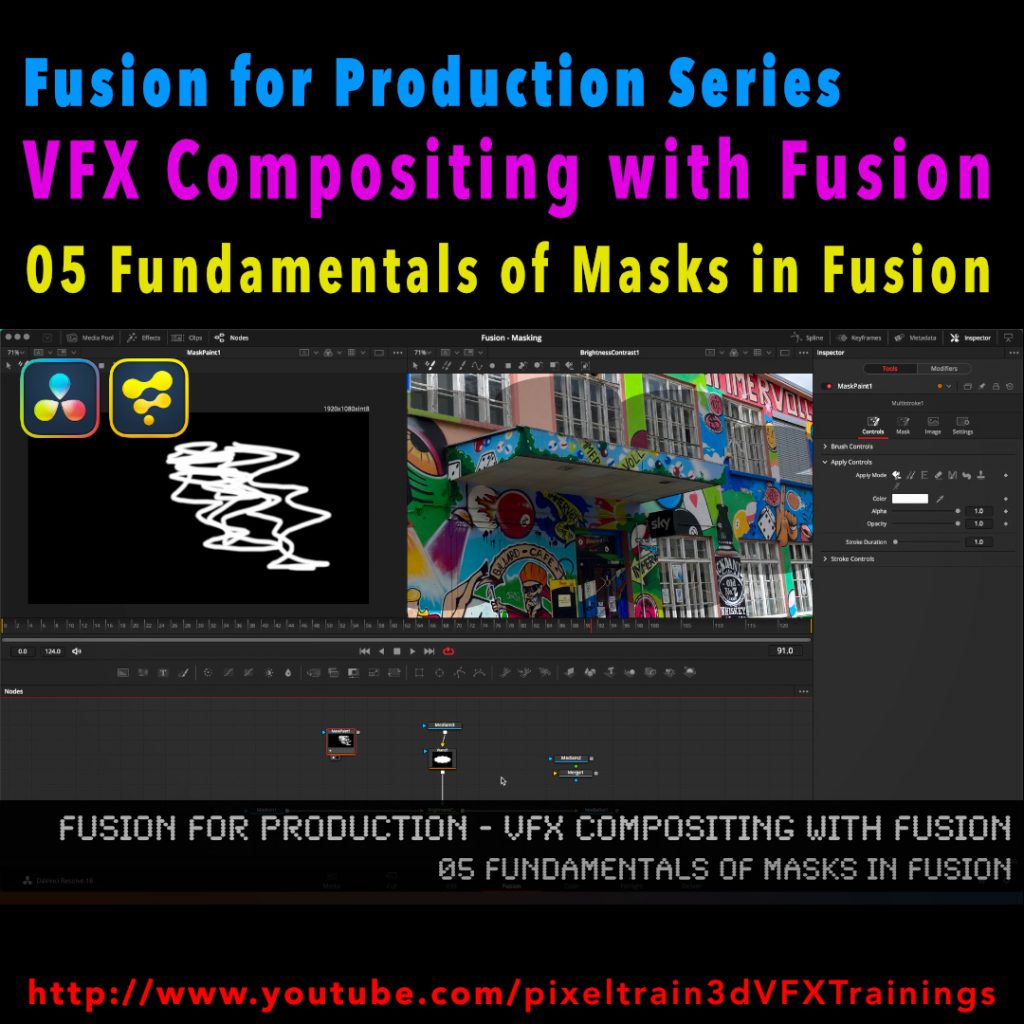
Fusion for Production - VFX Compositing with Fusion - 05 Fundamentals of Masks in Fusion

After a longer pause I’ve released a new free tutorial on my YouTube channel. I hope you like it 🙂

👉 https://youtu.be/RTIdh-ZsbTo

In this tutorial, you will learn the general uses and workflows of Masks in Fusion / Fusion Page in Resolve.

You will learn the different Mask types in Fusion, the most important parameters and options when drawing them. Also we will look into how to combine Masks for complex shapes for Rotoscoping. And, we will talk about bitmap based Masks in Fusion and how to use the Magic Mask, the Bitmap Mask and the Paint Mask.

I hope you like this new tutorial.

If you have questions or topics, which should be added, please let me know.

If you want to support me for publishing more free tutorials you could join my Patreons:

👉 https://www.patreon.com/pixeltrain3d

or give me a fast Coffee time Tip:
👉 PayPal: https://paypal.me/pixeltrain
The End of the year brings us time to reflect, relax and to learn something new!

Let’s start learning Blender with our „pixeltrain Blender Fundamentals – Fast Forward“ publication.

👉 YouTube Trailer

More than 20+ hours of content in over 114 lessons.
Learn everything you need to know for beginners and folks from other 3D applications.

Our gift for you is a Holiday Voucher for VIMEO VOD or GUMROAD.
Use „XMAS2022“ at checkout and you get 20% off.

👉 VIMEO „XMAS2022“

https://vimeo.com/r/3E4j/NnJYVjlwam

👉 GUMROAD „XMAS2022“

https://pixeltrain3d.gumroad.com/l/BlenderFundamentals/XMAS2022

Have a great Holiday,

Helge

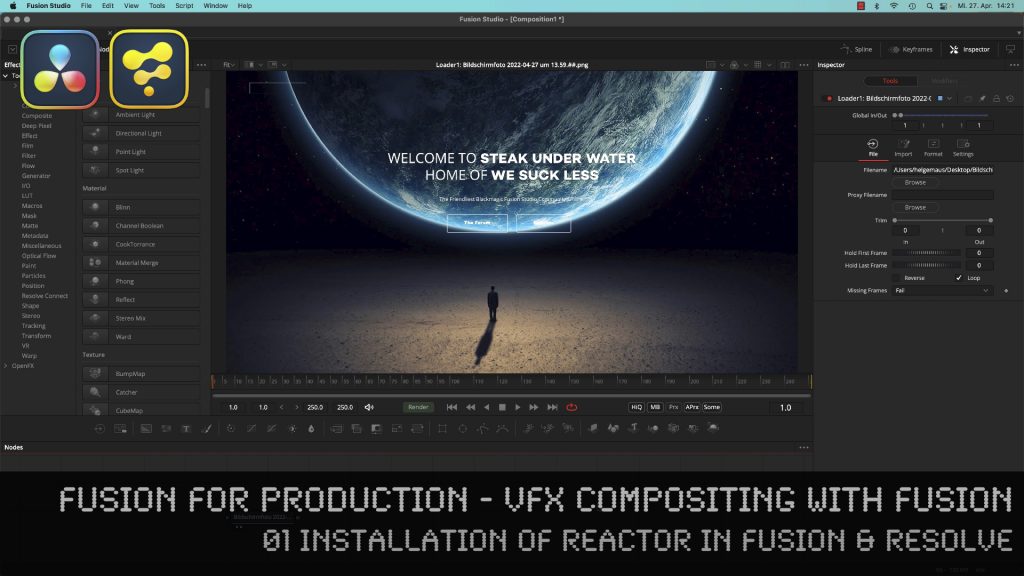
Fusion for Production - VFX Compositing with Fusion - 01 Installation of Reactor in Fusion & Resolve

In this tutorial series, we will talk about Blackmagic Fusion Studio and Blackmagic DaVinci Resolve (Fusion page) as a professional VFX Compositing package. We will dive into basic workflows and techniques to make your daily compositing work more effective and fun.

This tutorial shows you how to install the free Reactor Package Manager in Blackmagic Fusion Studio and Blackmagic DaVinci Resolve and how to use it. We will install Cryptomatte, Viewershaders and the Split EXR Script for working with EXR sequences inside of Fusion and DaVinci Resolve. Also you find here hundreds of free extensions and plugins for your Fusion, helping you with VFX compositing and Motiongraphics.

These topics are covered in this tutorial:

00:00 Overview of the series
01:02 Why do you want to use Fusion as a compositor?
01:10 Fusion in comparison with Foundry NUKE
03:19 How to extend the Fusions Toolset
04:03 Reactor for Fusion and Resolve
04:55 Installing the Reactor Lua Script in Fusion Studio
06:19 Overview of the Reactor User Interface
07:28 Installing new Tools, for example, Cryptomatte for Fusion
08:58 Installing the Split EXR Script
09:30 FUI Toolset
09:44 Installing Viewer Shaders for Linear Workflow
10:24 Reactor Menu in Fusion Studio
11:02 Finding the new Tools, Scripts and ViewerLUTs
13:00 Installing the Reactor Lua Script in DaVinci Resolve
13:52 Install Cryptomatte, ViewShaders & Resolve Essentials in DaVinci Resolve
14:49 Generating a new Fusion Comp in Resolve
15:57 Finding the Reactor Window in DaVinci Resolve
16:30 Using the HoS EXR Split Script for EXR Sequences in DaVinci Resolve

As a Senior 3D & VFX Trainer, Helge Maus teaches 3D- & VFX Applications for 20 years. His focus lies on VFX, but he also works with many studios and agencies from different visualization areas. He focuses on Houdini FX, Blender, and NUKE for his daily work and training.

If you have questions or topics, which should be added, please let me know.

If you want to support me for publishing more free tutorials you could join my Patreons:

Become a Patron!

or give me a fast Coffee time tip:
PayPal: https://paypal.me/pixeltrain
Find more information on https://www.pixeltrain.net
YouTube: https://www.youtube.com/pixeltrain3DVFXTrainings
Twitter: https://twitter.com/pixeltrain
Instagram: https://www.instagram.com/pixeltrain3d/
LinkedIn: https://www.linkedin.com/in/pixeltrain/
Artstation: https://www.artstation.com/pixeltrain

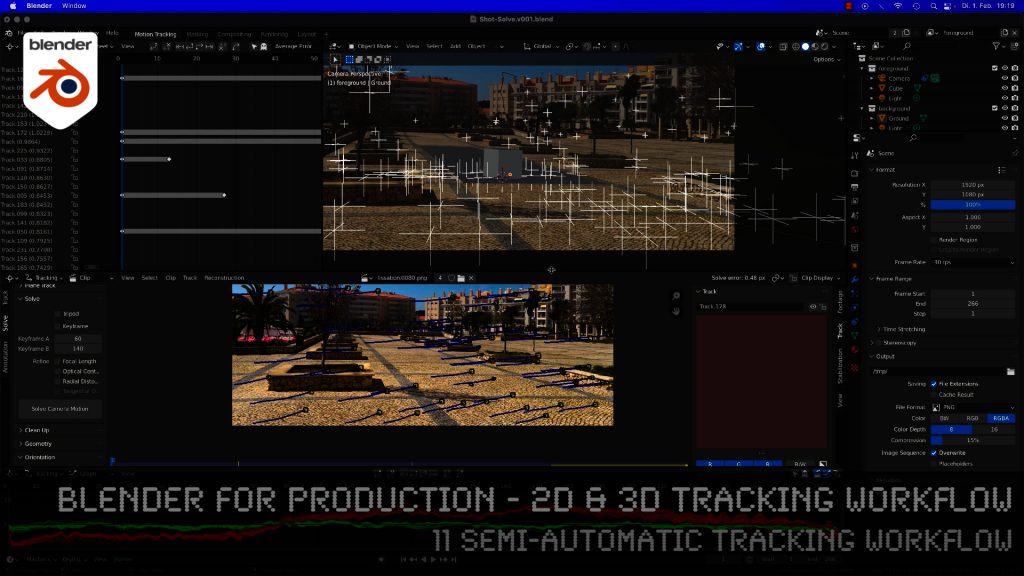
Blender 3.0 for Production - 2D & 3D Tracking Workflow - 11 Semi-automatic Tracking Workflow

Here is the next lesson of the Tracking Workshop. This time we will talk about semi-automatic tracking, which is a way of adding many trackers for shots, where you don’t want to add supervised trackers. Hope you like the lesson 🙂

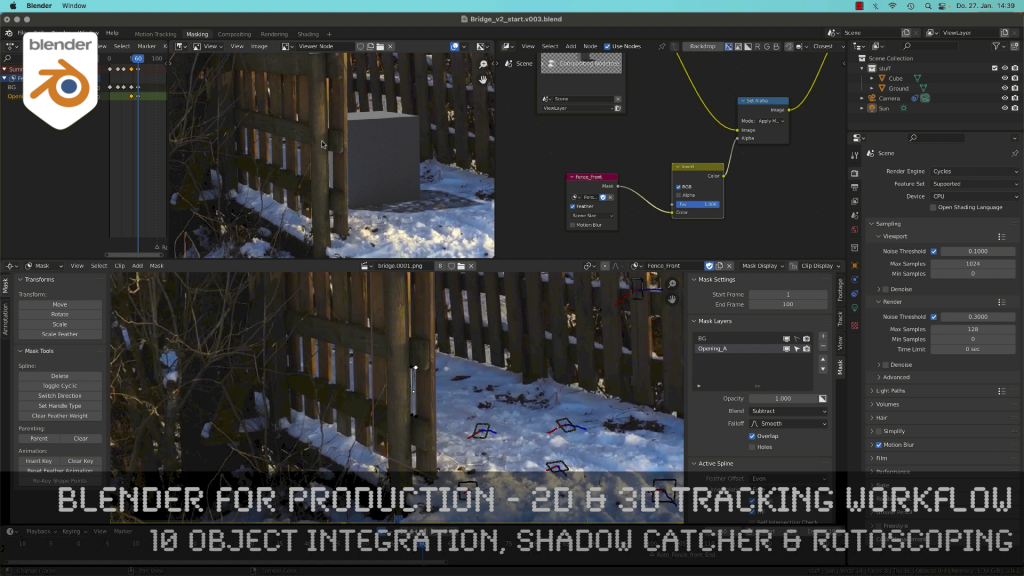
Blender 3.0 for Production - 2D & 3D Tracking Workflow - 10 Object Integration, Shadow Catcher & Rotoscoping

Today, I’ve just published my next Blender 3.0 tutorial.
We talk about 3D-Object Integration, Shadow Catchers & Rotoscoping in Blender 3.1 after 3D-Tracking. It’s part of my free “Blender for Production” series. Have fun!

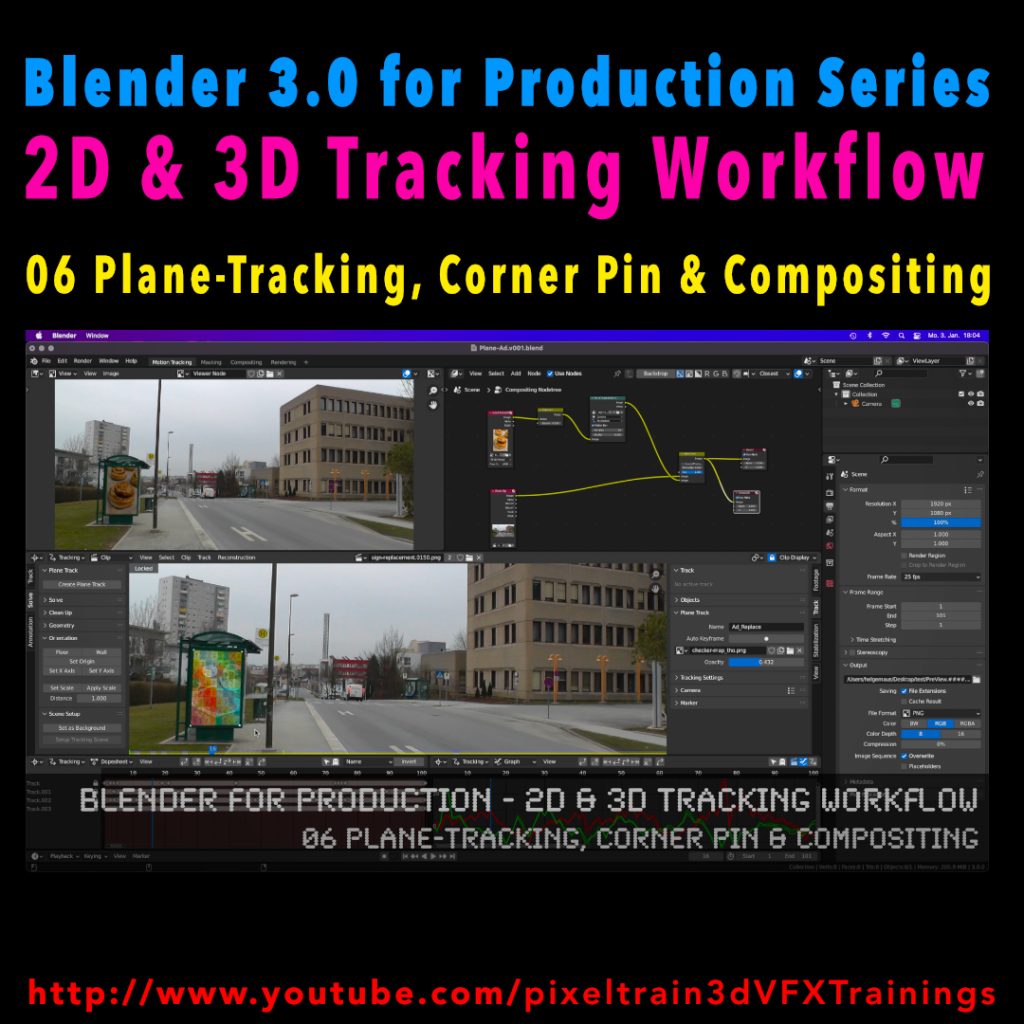
Blender 3.0 for Production - 2D & 3D Tracking Workflow - 06 Plane-Tracking, Corner Pin & Compositing

My next free “Blender 3.0 for Production” tutorial is out.
Let’s talk about plane-tracking, corner pining and the integration with the built-in compositor.

Have fun!

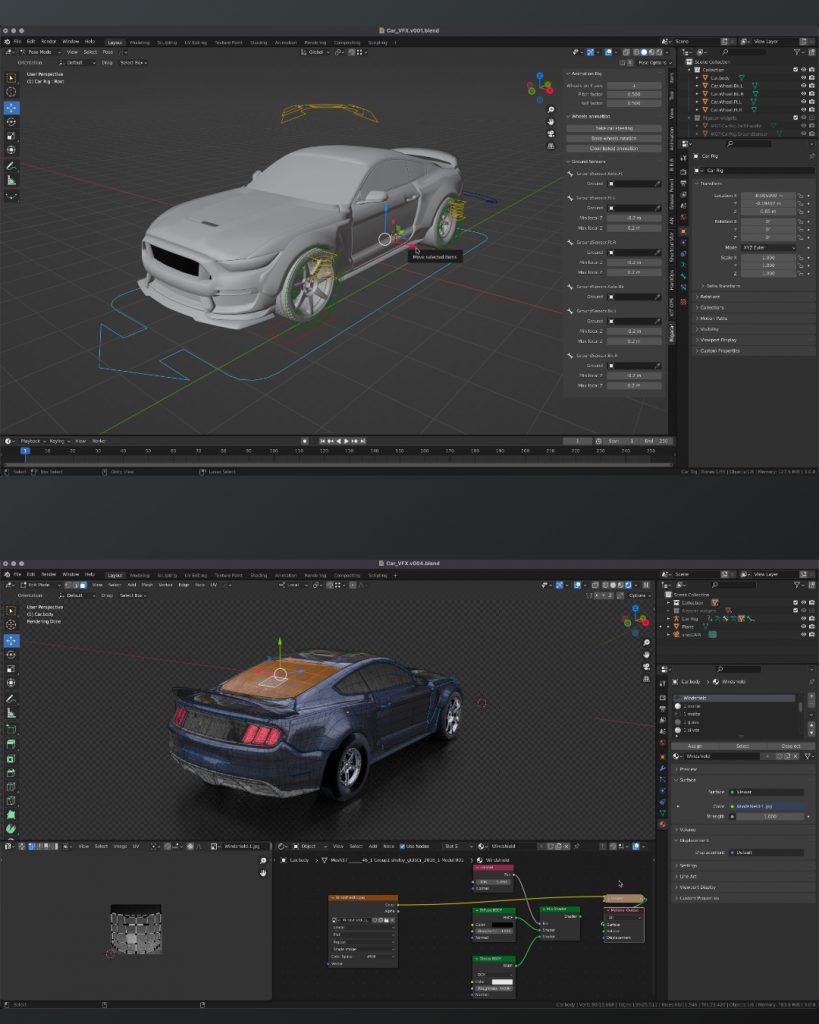
What do I love about Blender? That working in the application is so integrated, fast & flexible, for example for shading while changing some uvs on the fly with Cycles still running.

Also the amazing bunch of build-in add-ons for so many useful things, from archviz to generating trees. And, of course, the Add-ons made by talented programmers are so affordable or even free. For example this Car Rig add-on. Needless to say, subscription-free.

Yes, still many areas can be improved, but so much stuff is there already.

If you want to dive deeper into Blender, visit my YouTube channel for many free tutorials:
https://www.youtube.com/pixeltrain3DVFXTrainings